Pay for your team, a weekly Summary and missed call text-back
Pay for your team, your week on one page, and every missed call texted back.
October 19, 2026 · 5 new featuresPay for your team
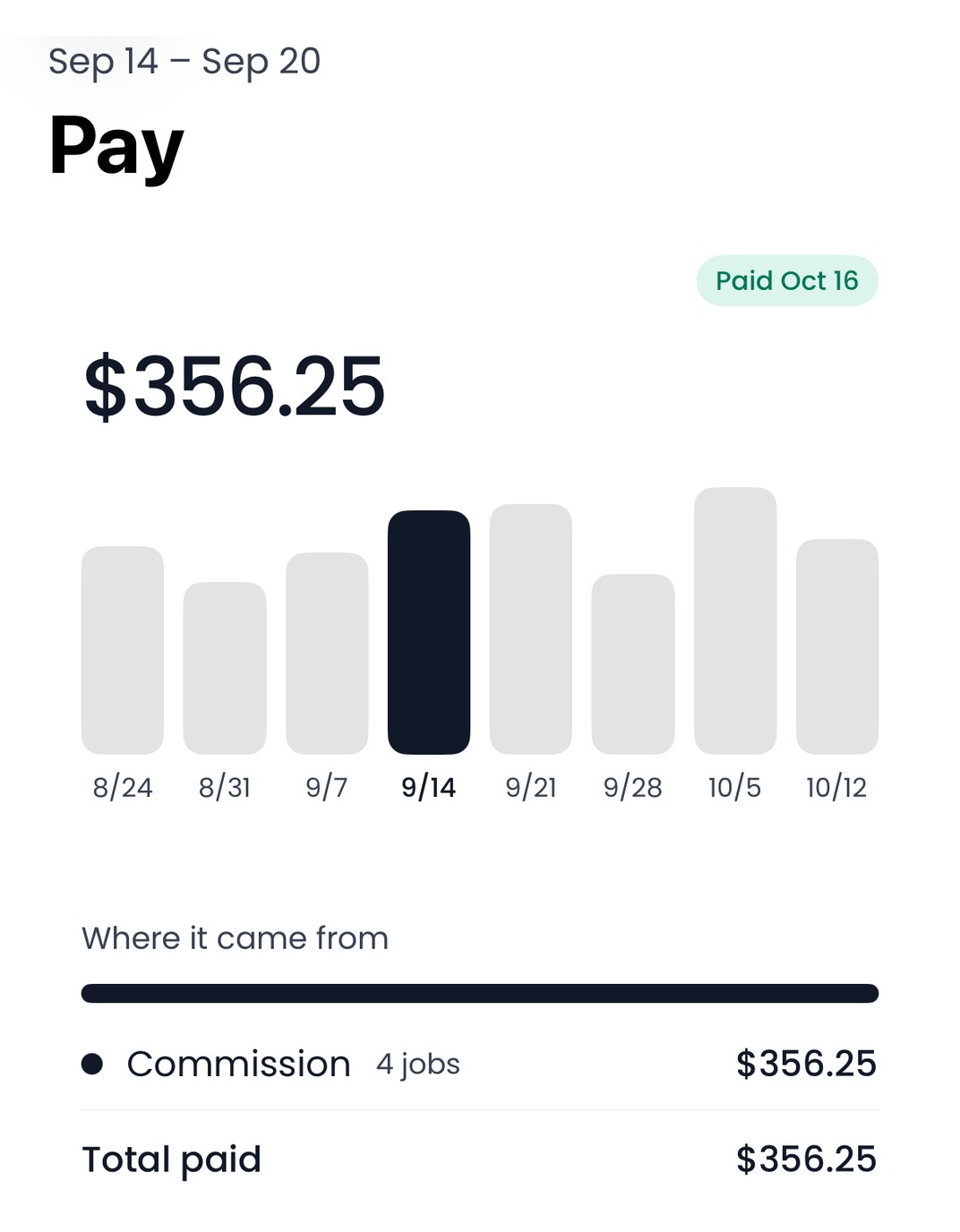
Mark a week paid in Payroll and that person gets a notification and sees the week in Pay: what they made, job by job, and where it came from. It works on the web and in the iPhone app, where Pay has its own page in the Menu. Off until you turn it on.
Your week on one page
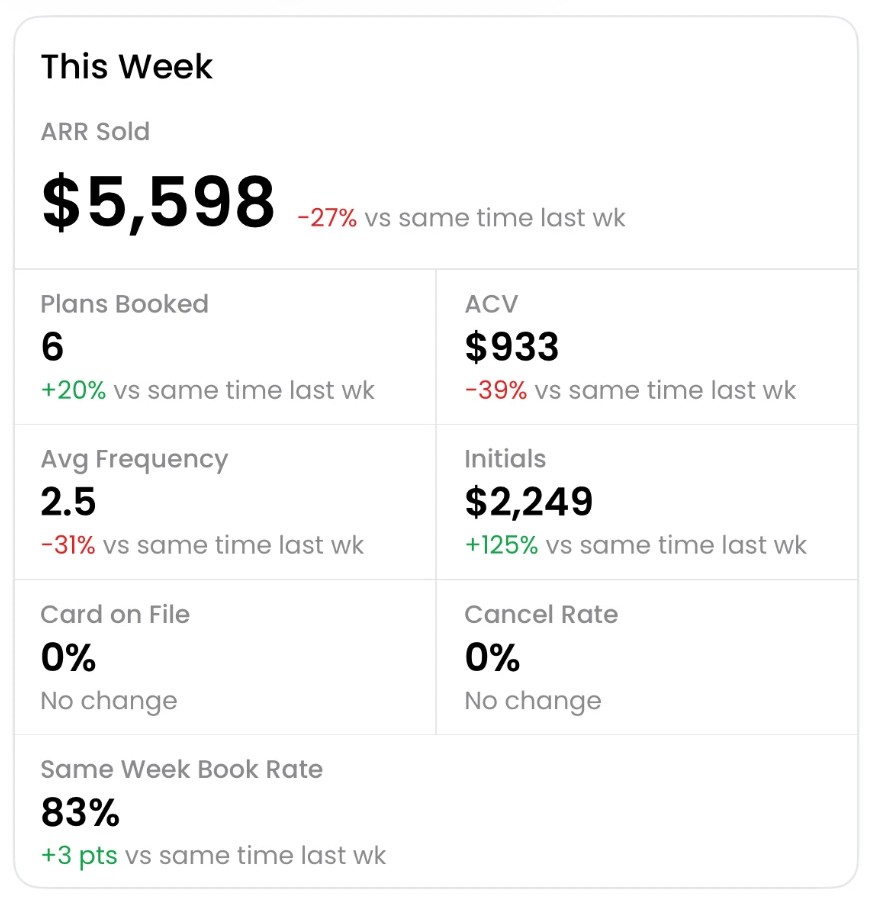
Sales shows ARR sold, plans booked and how fast you book. Fulfillment shows revenue cleaned, what is still expected and what is unpaid. Every number is against the same time last week, and every employee who sold a plan or cleaned a job sees their own week too. It shows once your business has sold a plan in the last 4 weeks.
Missed calls. Answered.
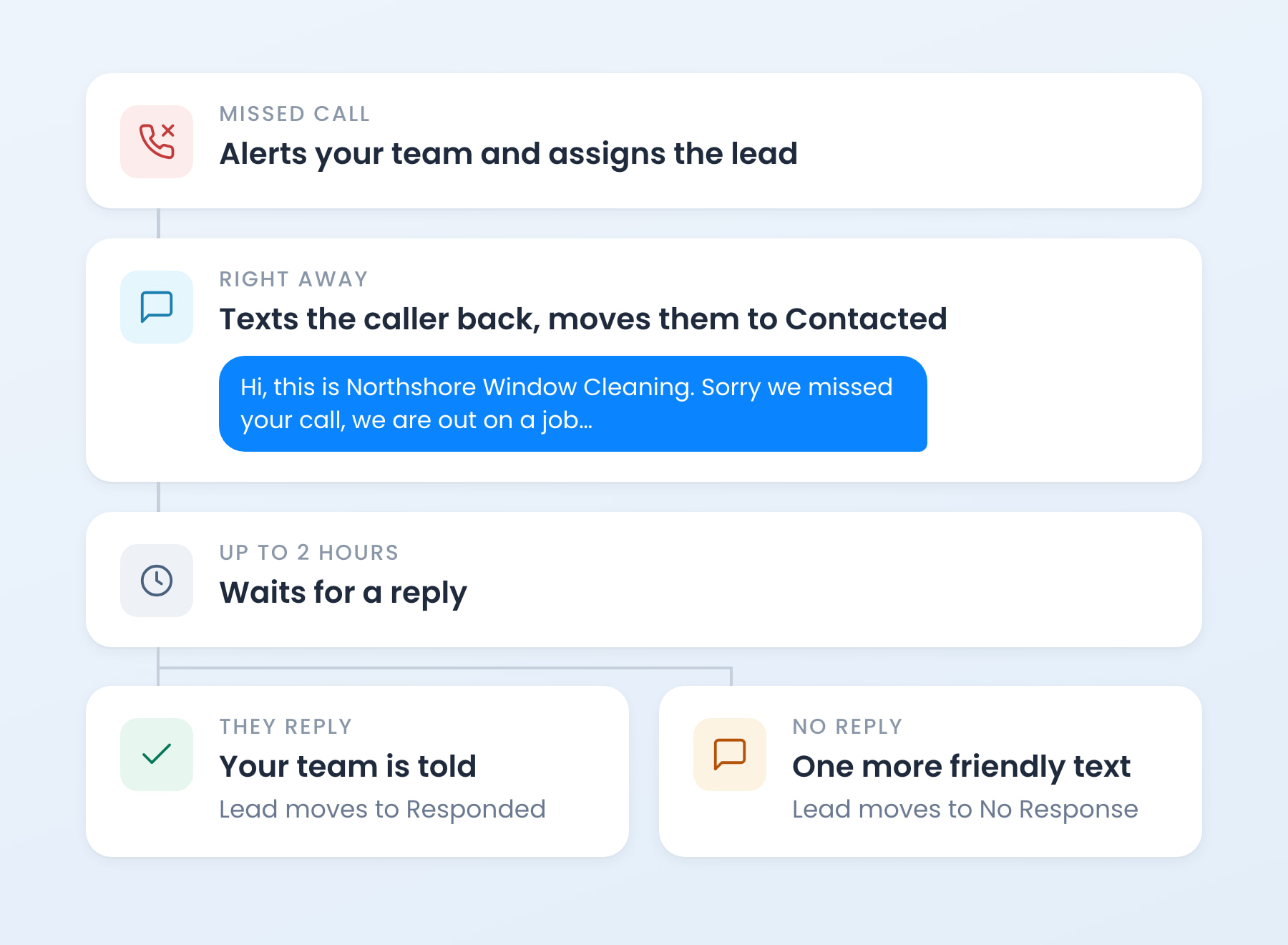
Turn every missed call into a lead. A ready-made automation texts the caller from your business number in seconds, assigns the lead and follows up once, then tells your team the moment they reply. Add it in three taps: it lands paused, so nothing sends until you switch it on.
Leaderboard teams and tabs
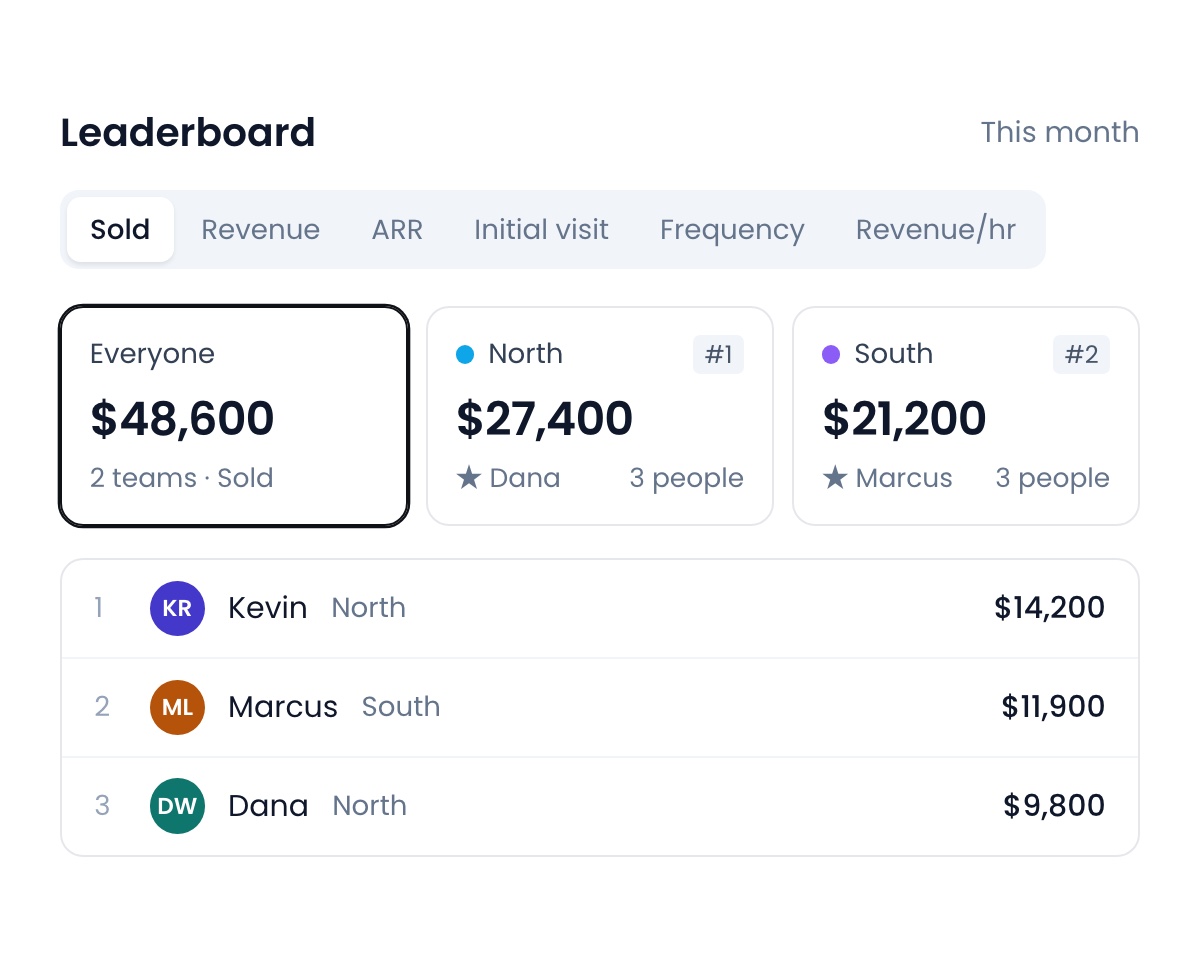
Build teams with their people and a leader, and see each team’s total and place above the rankings. Leaderboard settings are now the list of tabs your reps can switch between: show, hide and reorder them, and the top one is where the board opens. New tabs for Initial visit, Frequency, Signature and Revenue per hour.
Edit a plan on the subscription
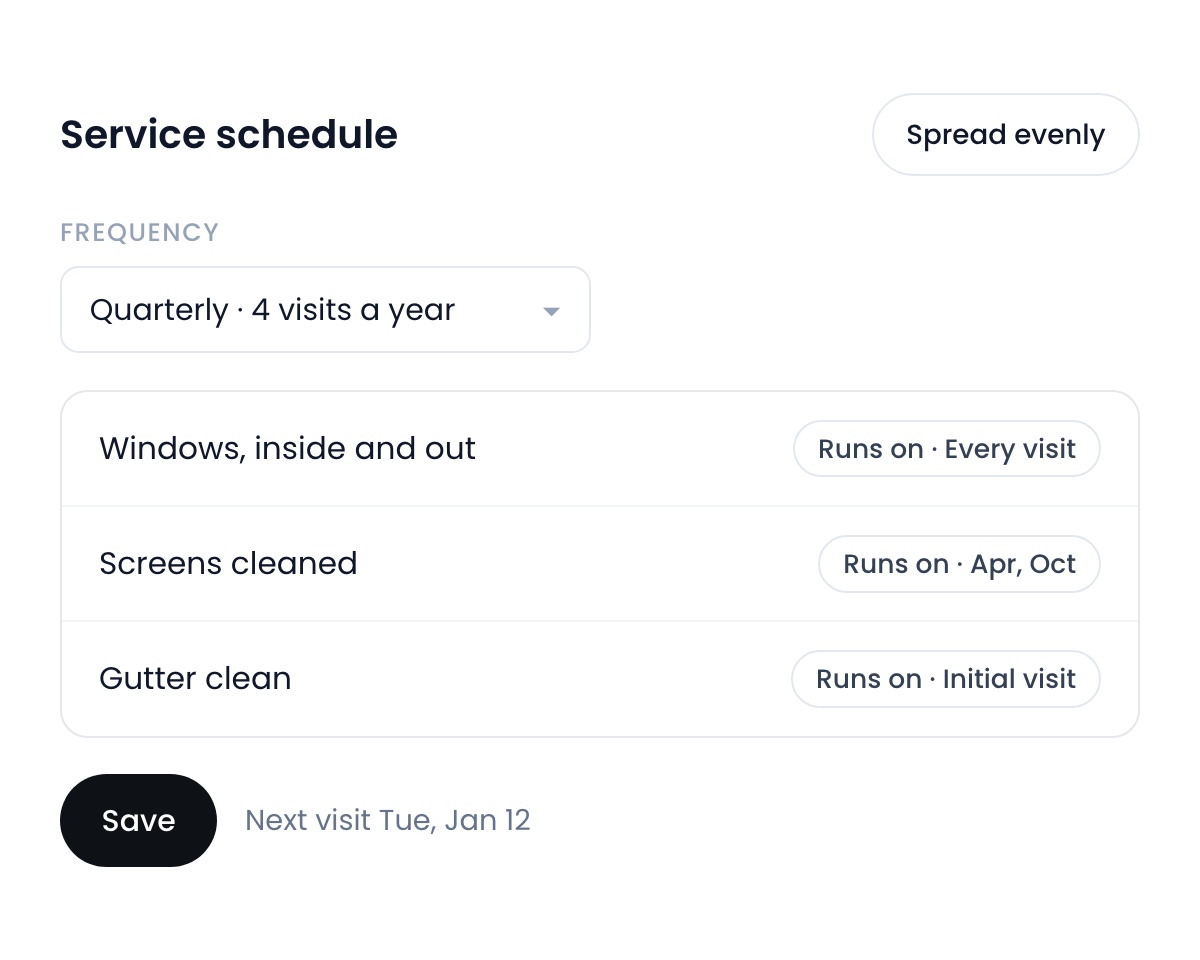
Change a plan’s frequency and which visits each item runs on right on the subscription page. Spread the visits evenly across the year in one tap, and choose which frequencies your dropdowns offer.
Also new
- See which blasts worked.The SMS Blast page shows your successful blasts, and can draft a follow-up text for the people who did not answer.Find it: Leads → SMS Blast
- A status tracker on every job.The job page opens on where the job is, from scheduled to paid, with its linked records as tiles under it.Find it: A job
- Customers beside the pins.Show your customers on the map next to your pins, starred by kind, and choose Apple Maps, Mapbox or Google Maps.Find it: Map → Filters
- Technician stats.Visits, revenue, tips and callback rate for each technician, from completed visits.Find it: Leaderboard · Reports
- Choose what each role can create.Pick which Create menu options every role sees.Find it: Settings → Team → Access → Create menu
- Hear back when your bug is fixed.Report a problem and you get a note when the fix is live, and a push when support replies.Find it: Help
New on iPhone
- Pay and the weekly Summary.
- A job can now run across several days.
- Notes keep their history, and new jobs start with your default notes.
- See the card fee before you tap to charge.
- Undo a scheduled cancel.
- Full screen on iPad.
See why teams are switching to Flyra
Thirty minutes where we show you how Flyra will help your business.