226 automation triggers, Settings Integrations and a cleaner Team page
More ways to start an automation, your outside apps in one place, and a cleaner Team page.
November 23, 2026 · 6 new featuresStart an automation from 226 triggers
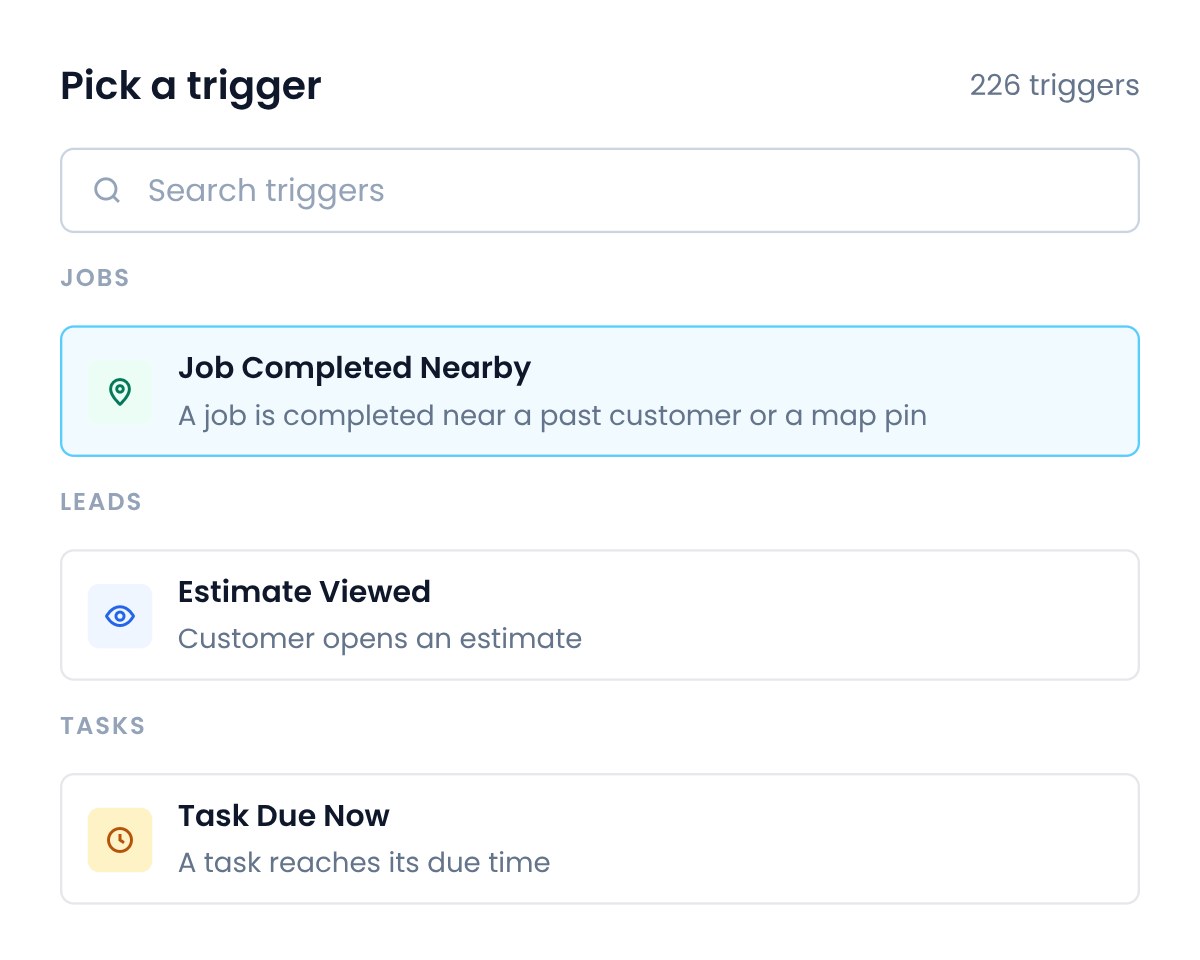
The trigger picker now offers 226 ways to start an automation, from Estimate Viewed and Job Completed Nearby to Task Due Now, payments, reviews and your team. Search by name and pick one. More steps can now be added and edited right in the builder too, including Paths with an A/B split, Wait for event and Go back.
Every outside app in one place
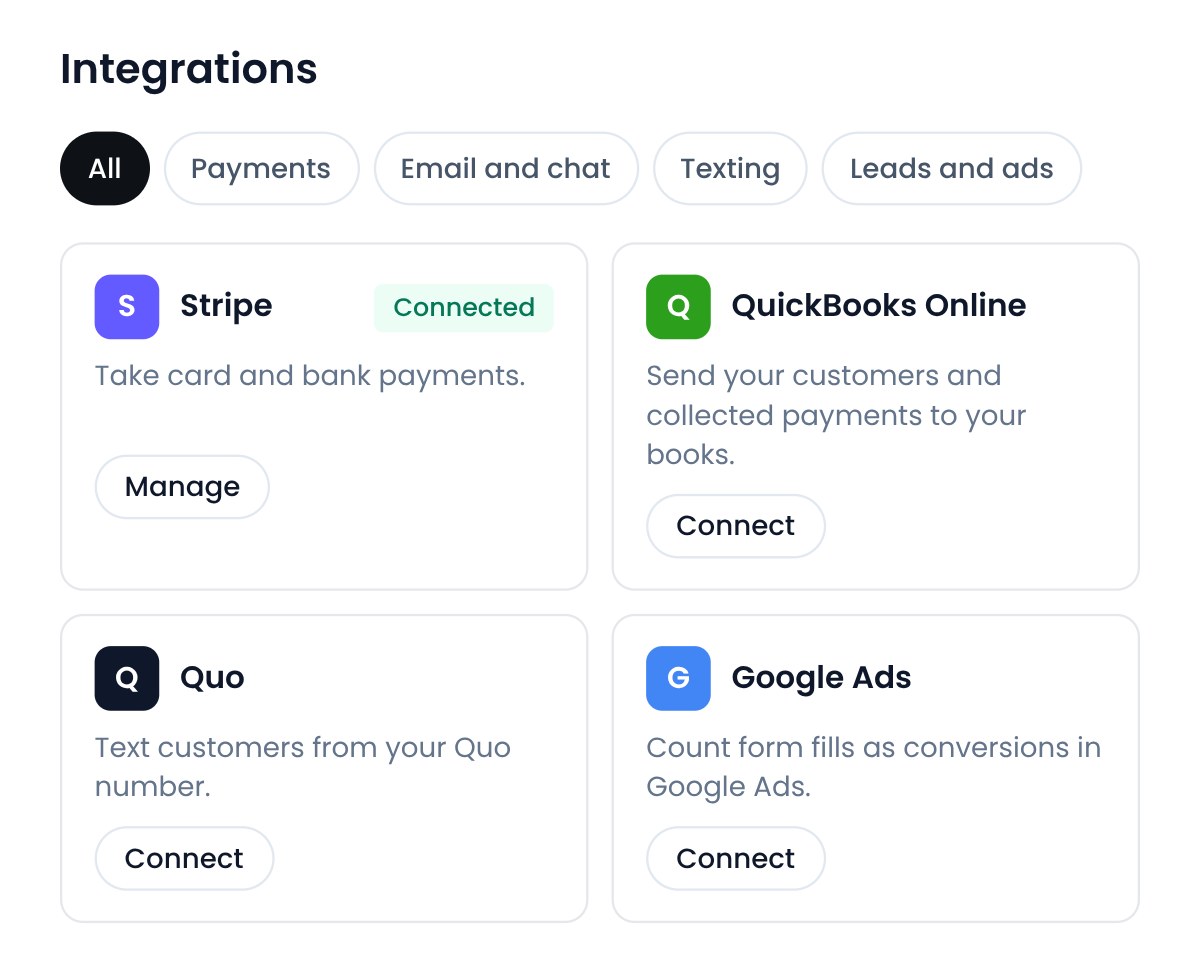
Settings now has an Integrations page with every app Flyra connects to, from Stripe and QuickBooks Online to Quo, Zapier and Google Ads. Filter by Payments, Email and chat, Texting, AI and automation, or Leads and ads. Each card shows whether it is connected and opens its own window to connect or manage it.
A cleaner Team page
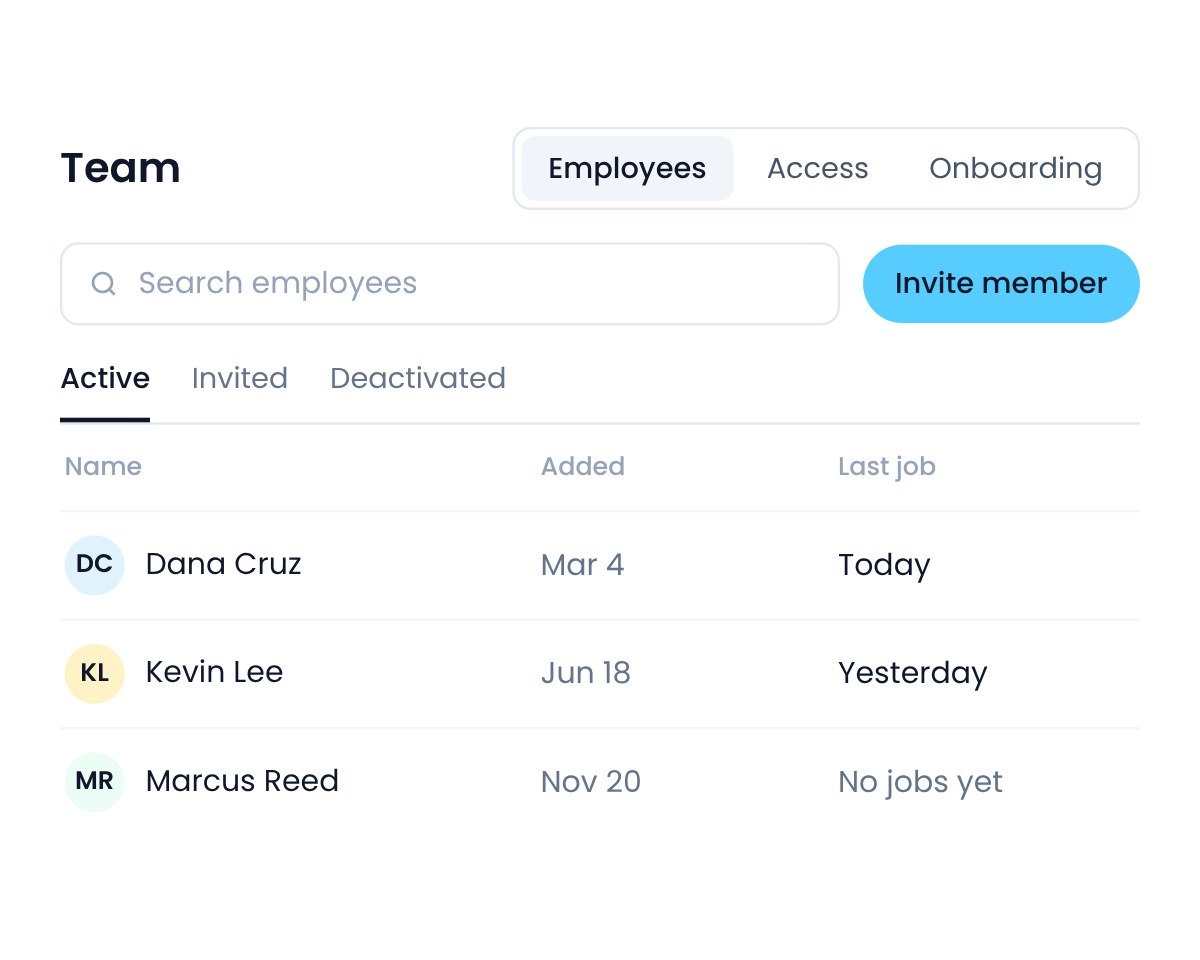
Settings → Team is rebuilt around one list of your people, split into Active, Invited and Deactivated. Search employees, see when each person was added and when they last had a job, and resend an invite in one click. Invite member asks only for a name, email, optional phone and role.
The Phone tab, in the inbox
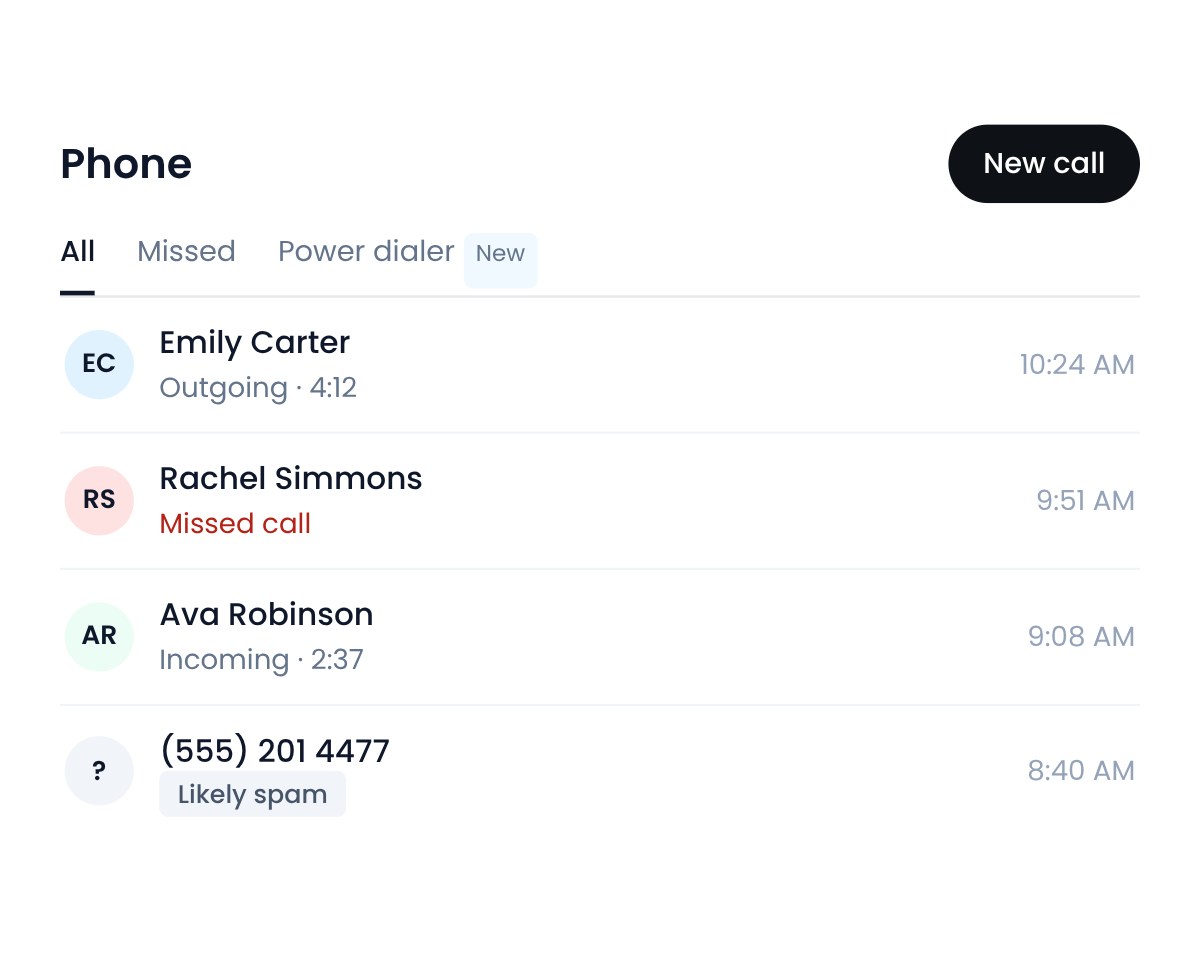
Calls now sit in the inbox, laid out like your texts. Switch between All, Missed and Power dialer, start a New call by name or number, and use Mute, Keypad and Speaker while you talk. A caller who sat silent in your phone menu and hung up no longer counts as a missed call, and is marked Likely spam.
A discount on only some visits
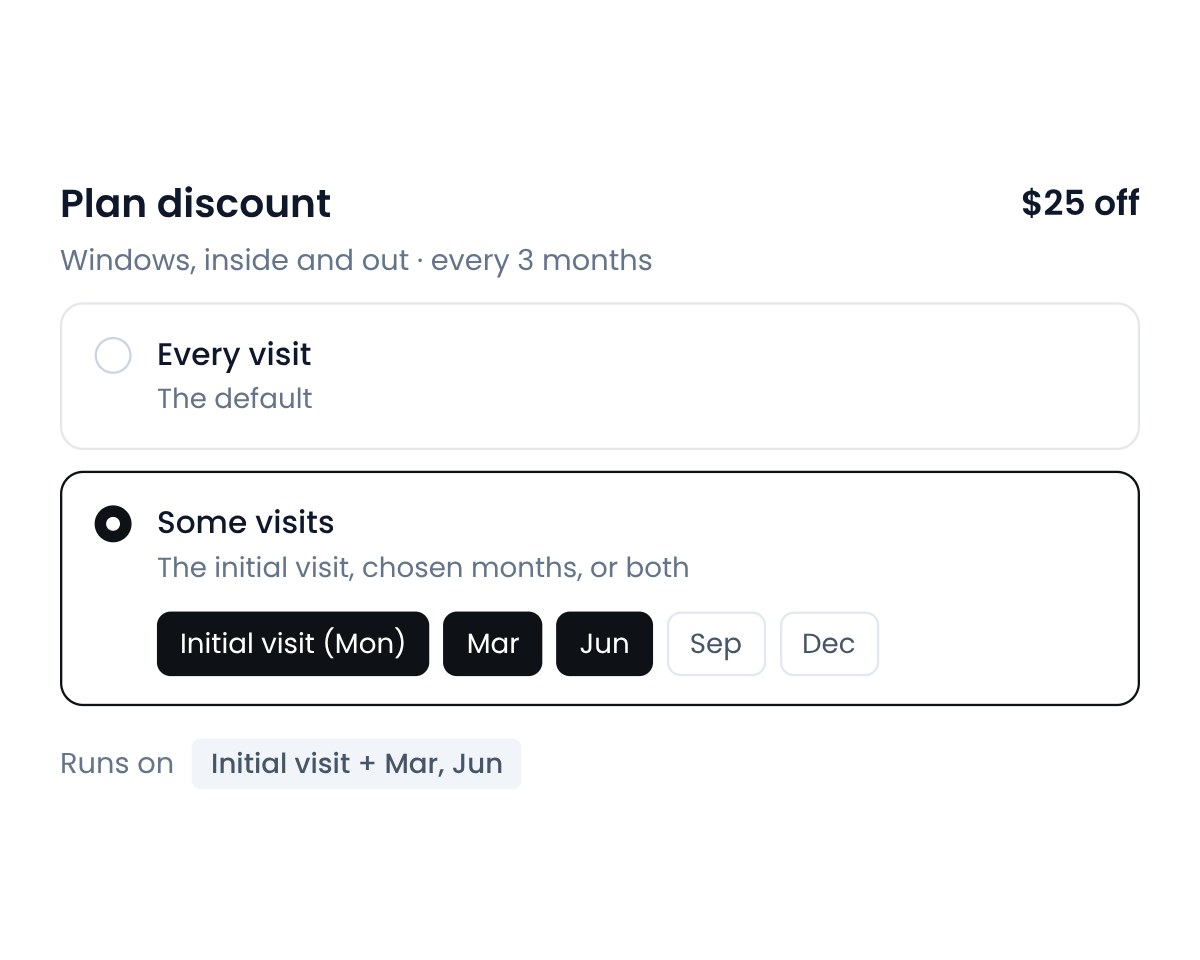
A subscription discount no longer has to come off every visit. Choose Some visits to take it off the initial visit, chosen months, or both, the same way a line item can. Payment plans and subscriptions billed a flat amount each period keep the discount on every visit.
A Leaderboard worth racing for
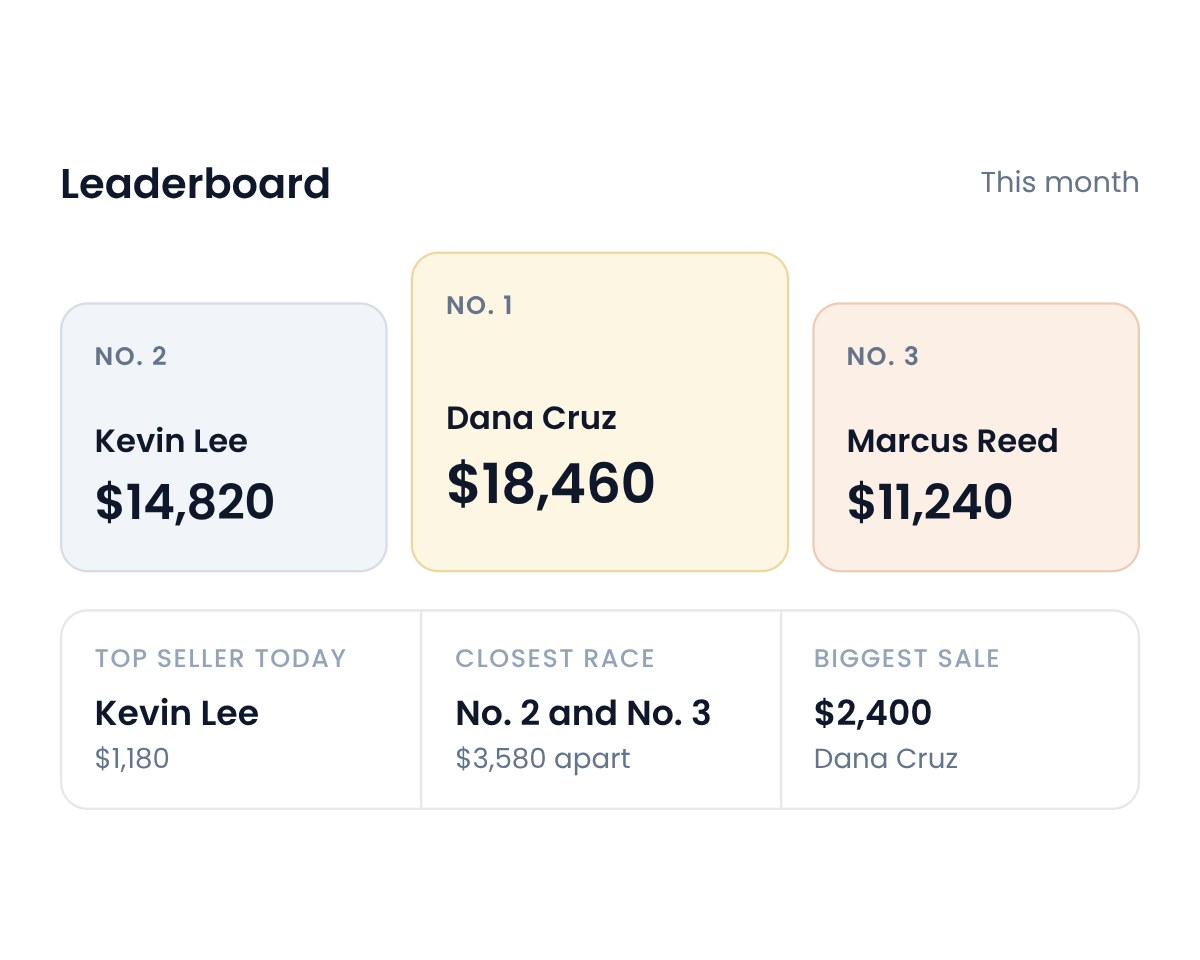
The top three now stand out as gold, platinum and bronze cards. A strip under them shows the team total, the top seller today, the closest race and the biggest sale, so everyone can see who to chase.
Also new
- Your payouts, with real dates.See what is on the way and when it lands, what was paid out recently, and set your payout schedule.Find it: Settings → Payments → Payouts
- Print the Dispatch board.Print the day with one page per technician, and filter the board by area or job type.Find it: Schedule → Dispatch board → Print
- MRR on the dashboard.Switch the Revenue card between Revenue, ARR and MRR.Find it: Dashboard → Revenue
- Today in date filters.Pick Today in one click on the dashboard, Reports, Payroll and Routes.Find it: Reports → date range
- Addresses in the Jobs export.The Jobs CSV now has each job’s street, city, state and zip.Find it: Reports → Jobs → Export CSV
- Leave out customers with a visit coming up.Skip anyone who has upcoming service when you send an SMS blast.Find it: Leads → SMS Blast → Leave out → Has upcoming service
New to Automations
- Start an automation when a task reaches its due time. A task with no time runs at 8 AM your time.
- Start an automation when a job is completed near a past customer or a map pin, at most once every 30 days for each neighbour.
- Copy a step and paste it anywhere in the builder.
- Test run any trigger against a customer you pick.
- Give a text or email step a send window, so it only goes out on the days and hours you choose.
See why teams are switching to Flyra
Thirty minutes where we show you how Flyra will help your business.