Internal notes, edit jobs from the Schedule, and Reports rebuilt
Notes only your team sees, quicker edits on the Schedule, and Reports rebuilt.
November 16, 2026 · 5 new featuresInternal notes on every conversation
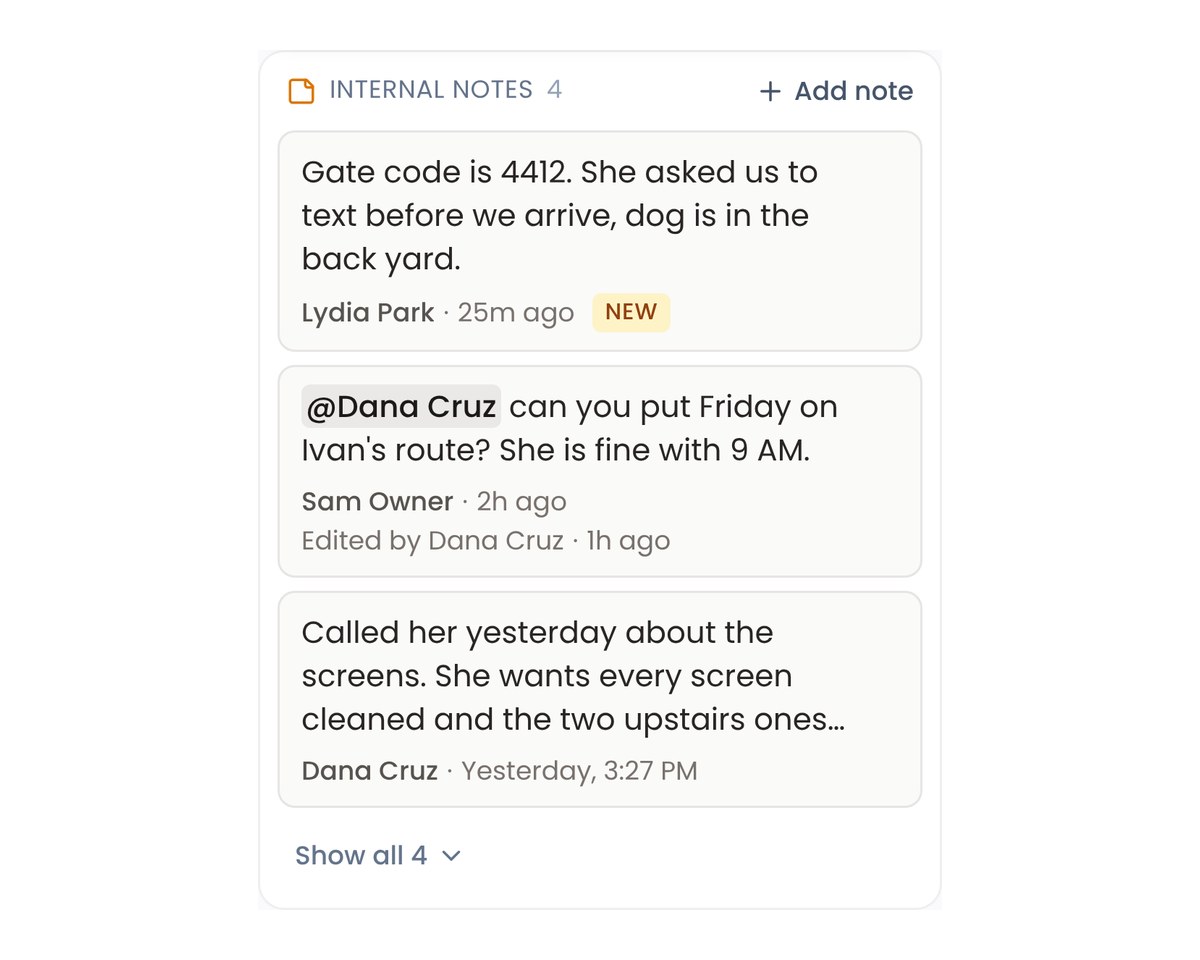
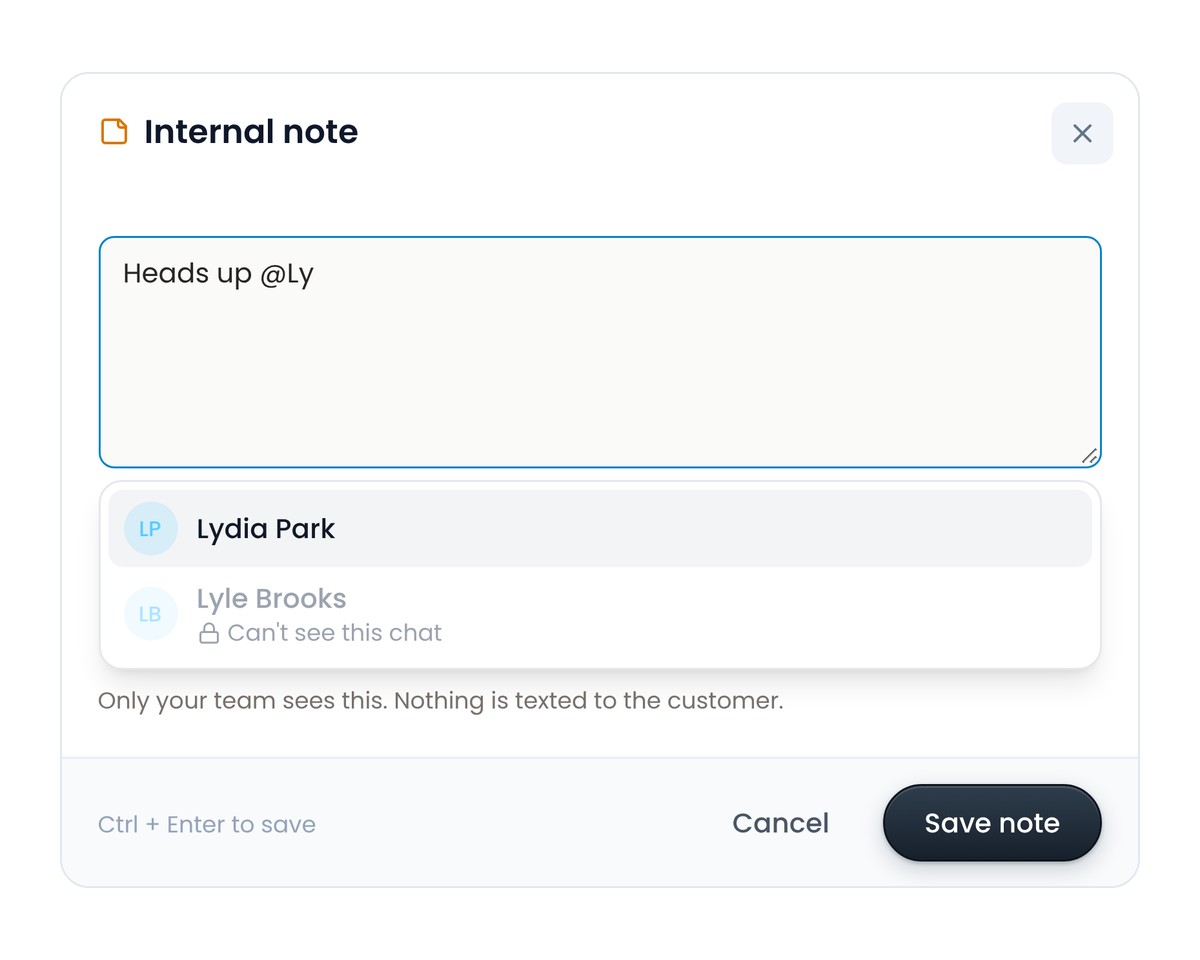
Leave a note on any text conversation that only your team can see. The customer never gets it. @mention a teammate and they hear about it by bell, push and email. Notes sit in the Internal notes card beside the chat, and the inbox list marks every conversation with a note you have not read.
Edit jobs right from the Schedule
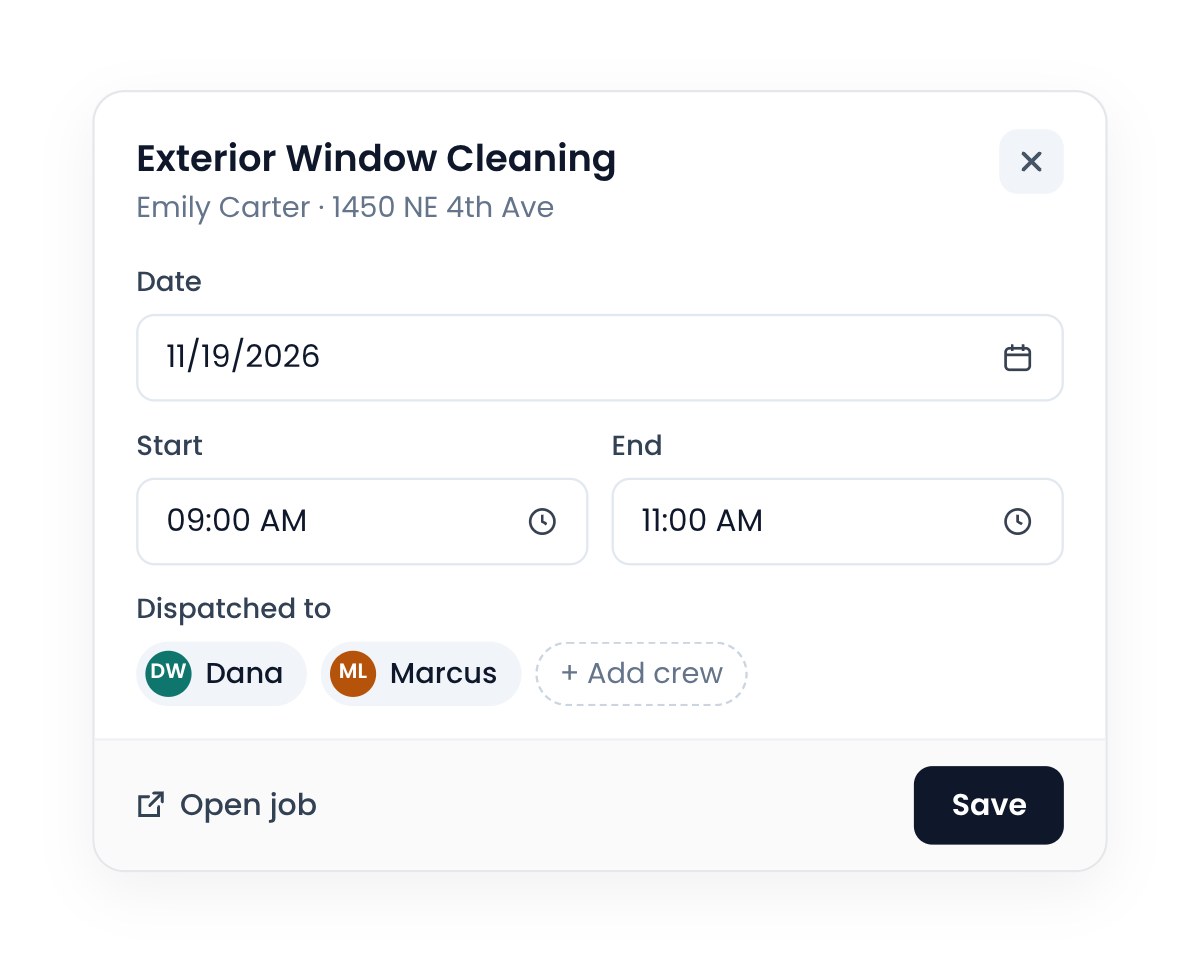
Click any job on the Schedule to change its date, start and end time, salesperson or crew without leaving the page. Flyra warns you when someone you add is already booked at that time. Open job takes you to everything else.
A Dispatch board for the day
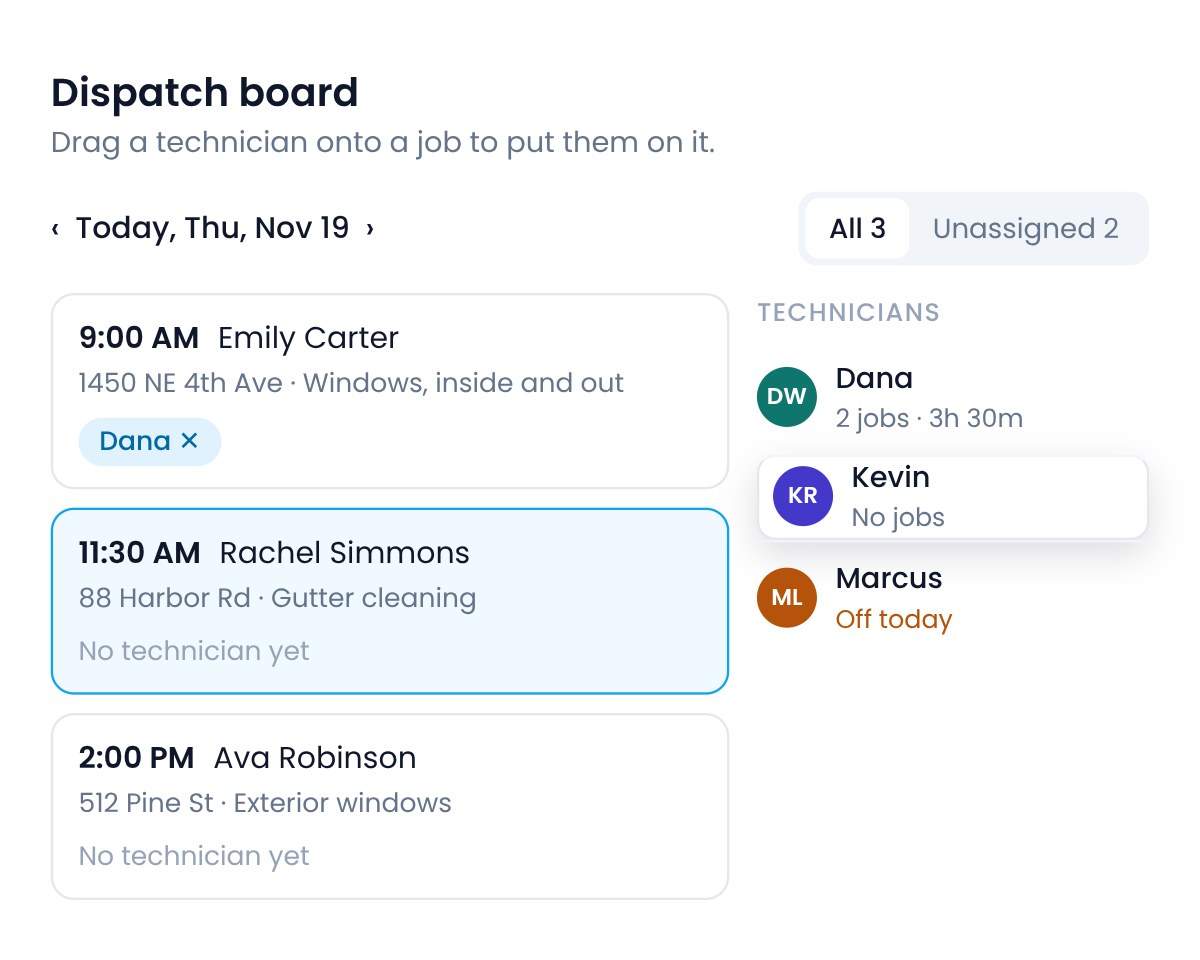
See a day’s jobs on one side and your technicians on the other, then drag a technician onto a job to put them on it. Each technician shows their jobs and hours for the day, and Flyra tells you when someone is off or already has a job at that time. Filter to Unassigned to fill the gaps fast. For admins whose role can dispatch.
Edit one visit or the whole subscription
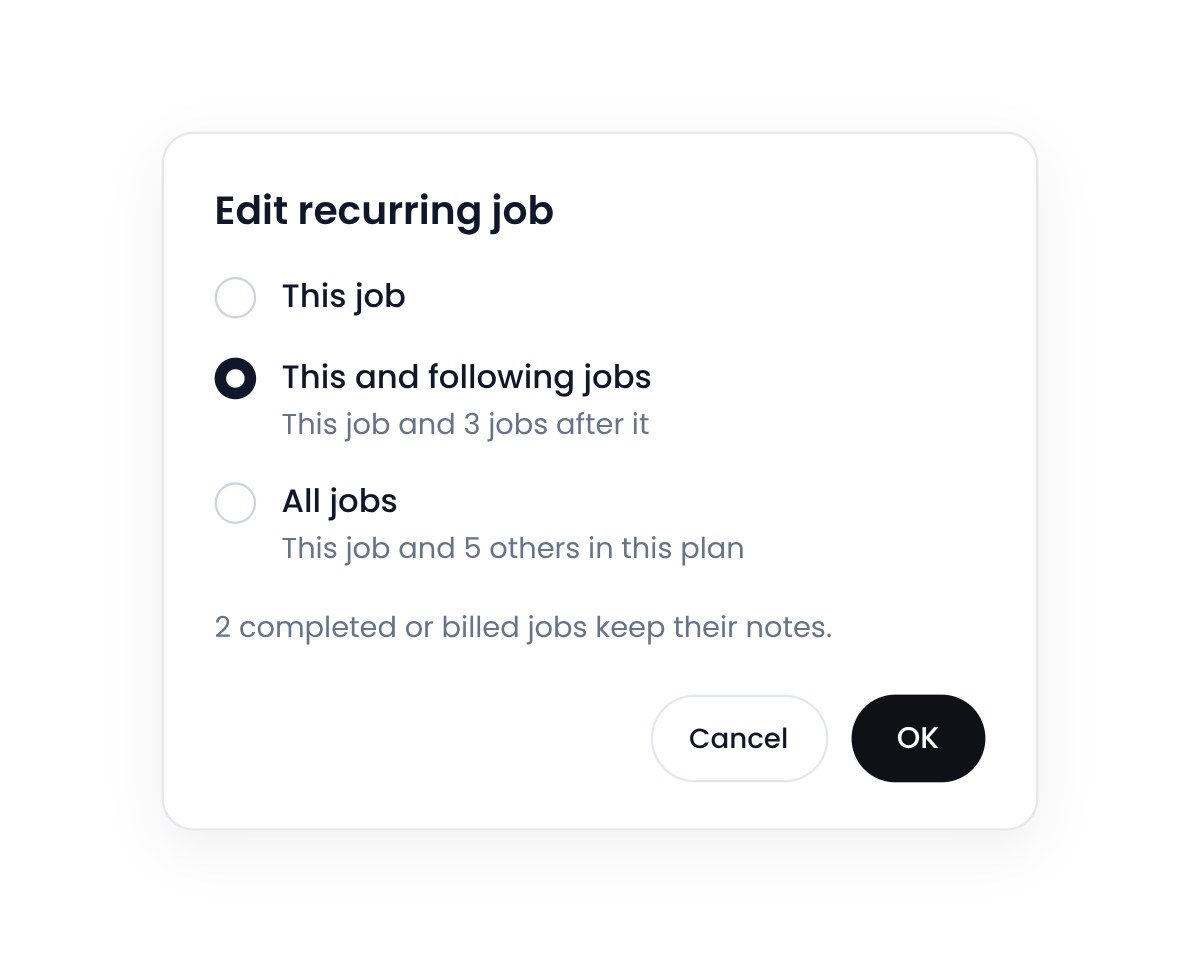
When you change a visit that belongs to a subscription, Flyra asks whether it applies to this job, this and following jobs, or all jobs. It works for notes, technicians, moving the date and cancelling. Completed and billed visits keep what they had, and cancelling all jobs cancels the subscription.
Reports, rebuilt
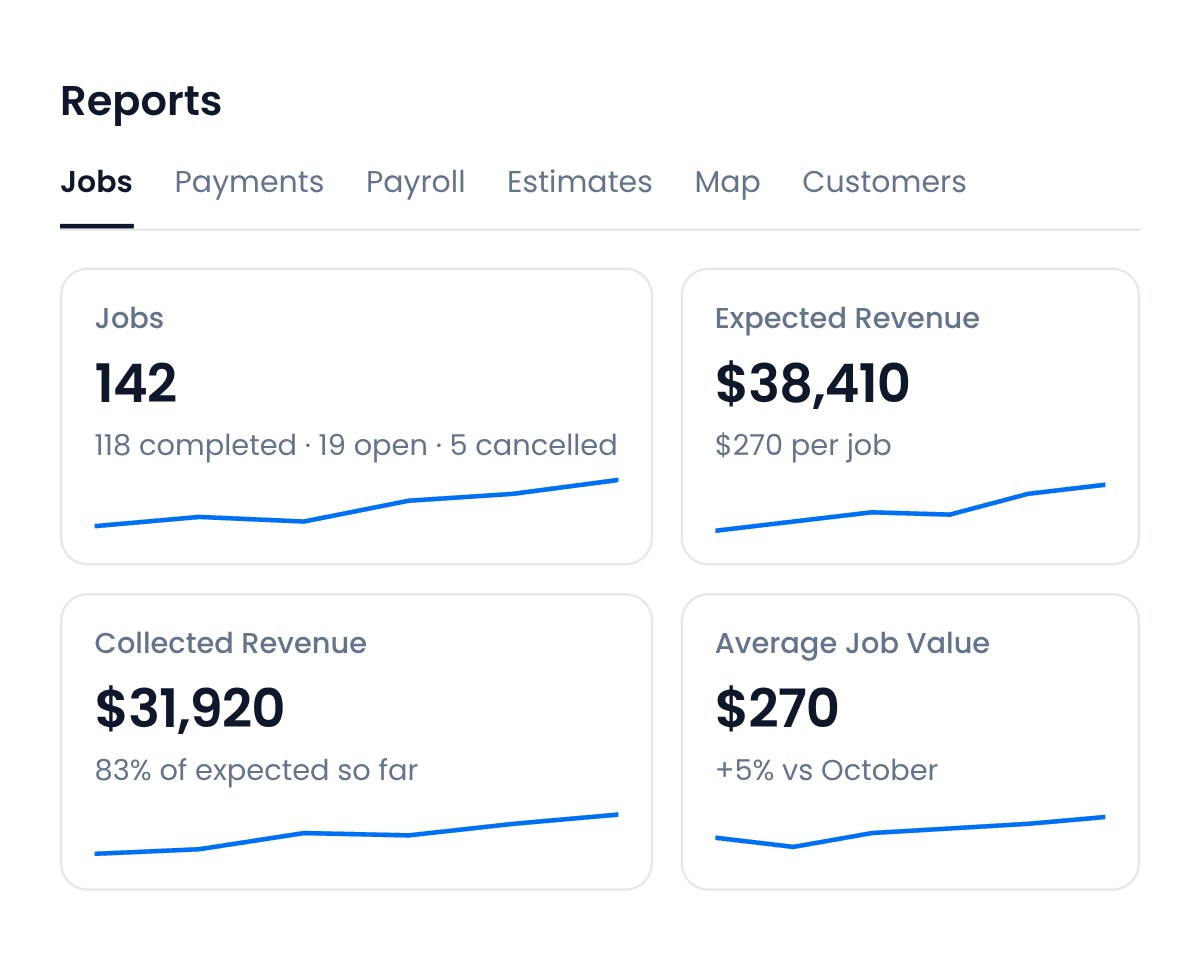
Jobs, Payments, Payroll, Estimates, Map and Customers each open on a row of key numbers with a six month trend under every one. Estimates gets a Follow-up Queue of every estimate still waiting on the customer, Payments groups recent payments by day, and Customers shows who is active, at risk or inactive. Every tab now uses the same colors.
Also new
- Videos in texts and emails.Attach a video up to 20 MB. A big video goes in a text as a link the customer taps to watch, and inbox emails can now carry files.Find it: Inbox → Attach files
- Bring back a cancelled subscription.Reactivate it from its page and its future visits come back.Find it: Subscription page → Reactivate
- Payroll in one list.Sales and technicians sit in one list under one summary, and a first time setup sets everyone’s starting rates and pay period.Find it: Reports → Payroll
- Messages get their own tab.The text thread moves to a Messages tab on the customer page, so jobs, estimates and invoices use the full page.Find it: Customer page → Messages
- Pick a visit day by rule.Set a subscription to the same day or the same weekday each month again.Find it: Subscription page → Schedule → Repeats
New on iPhone
- Text any number from the call log or the keypad.
- Choose this job, this and following jobs, or all jobs when you edit a subscription visit.
- Send a video up to 20 MB in a text, as a link.
- Swipe between days on the Schedule.
- Jobs, estimates, invoices and subscriptions as inbox style rows.
See why teams are switching to Flyra
Thirty minutes where we show you how Flyra will help your business.