Inventory, approved estimates and quality checks
Our development team has been working harder than ever to bring your business the best features. Here is everything we added this week.
August 24, 2026 · 6 new featuresInventory
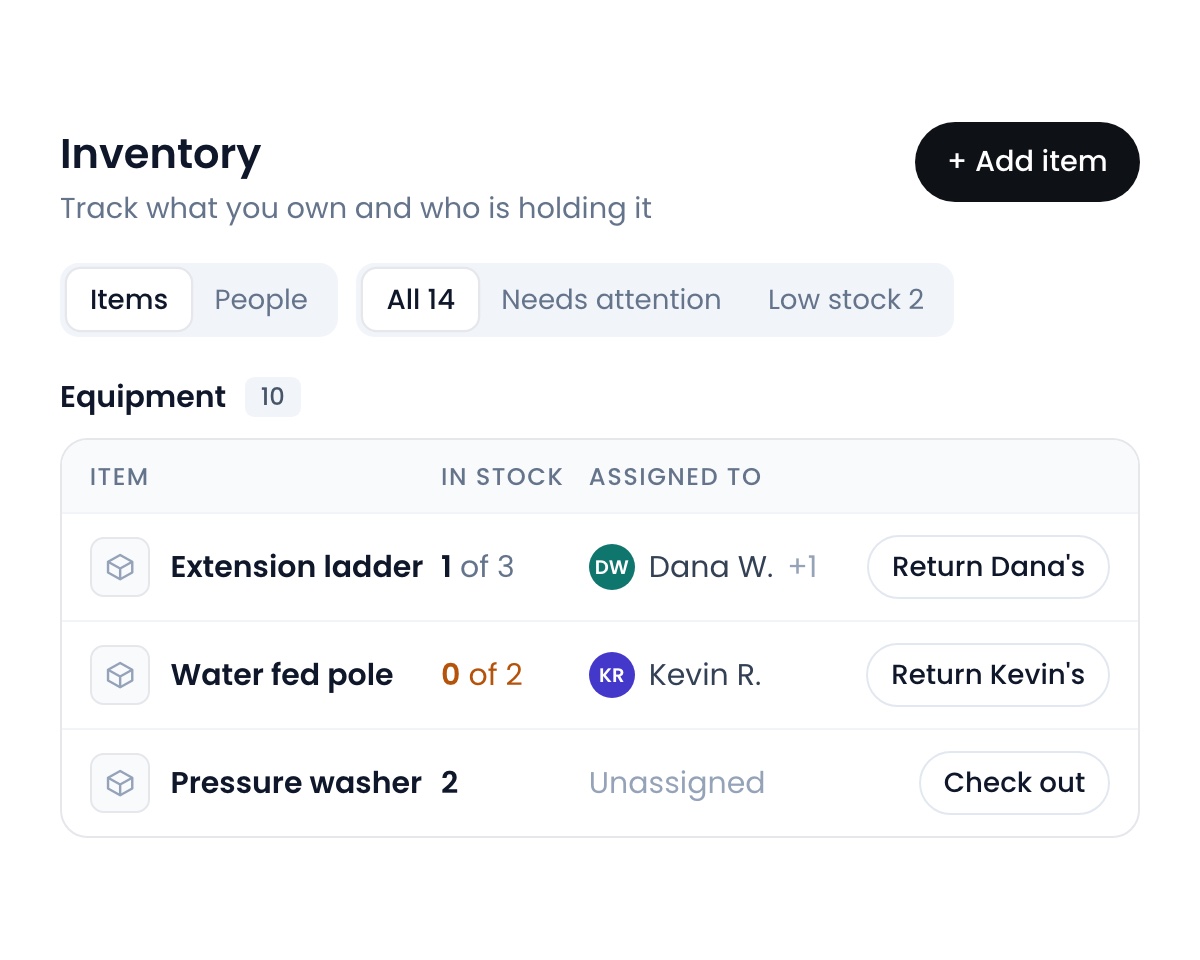
Meet the new Inventory tab. Every check out and return is logged so you always know who has what, and workflows do the chasing for you: send reminders when an item is still out, and a restock alert when supplies run low.
Approved estimates
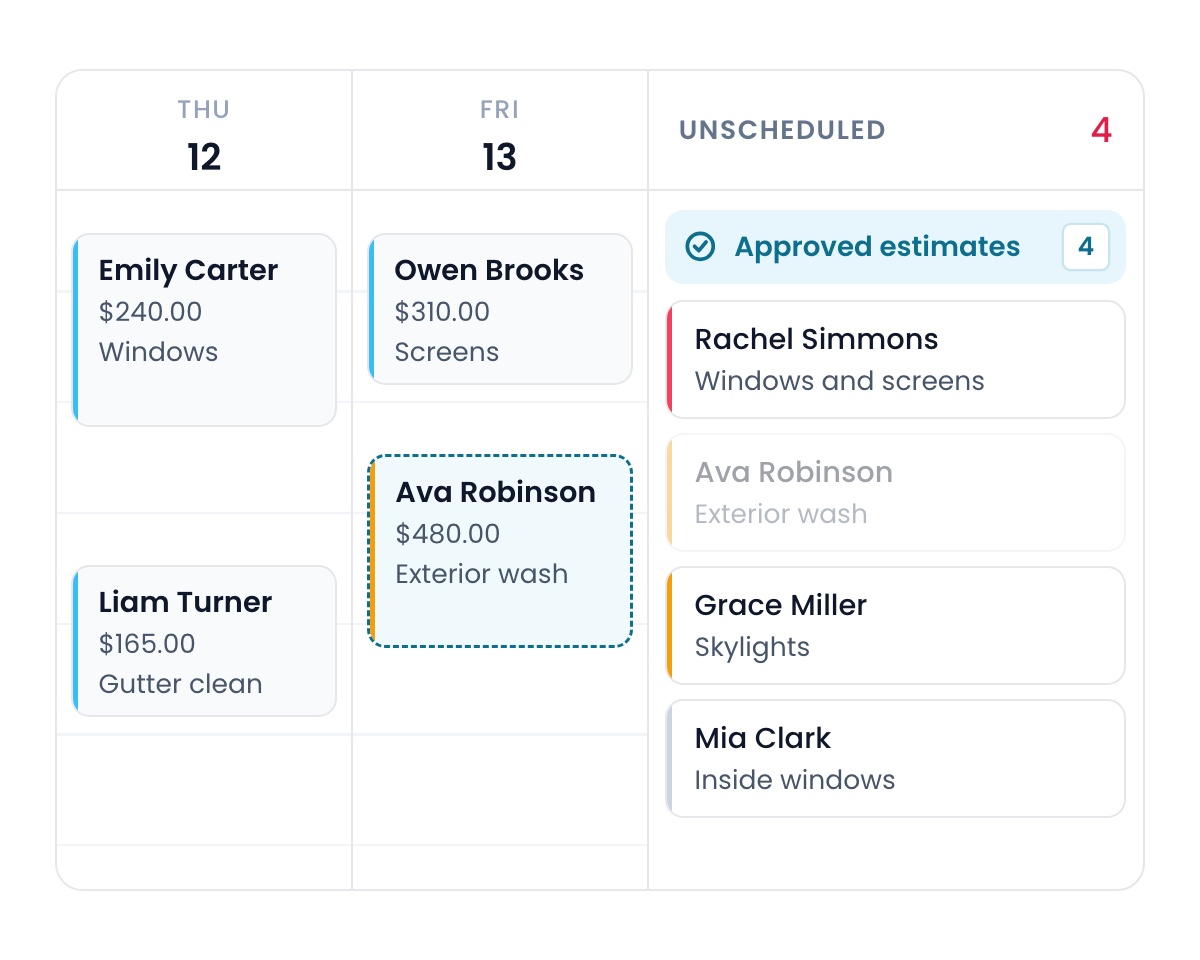
The moment an estimate is approved, it shows in the new Approved estimates panel on your schedule, ready to drag onto your team’s calendar.
In person estimates
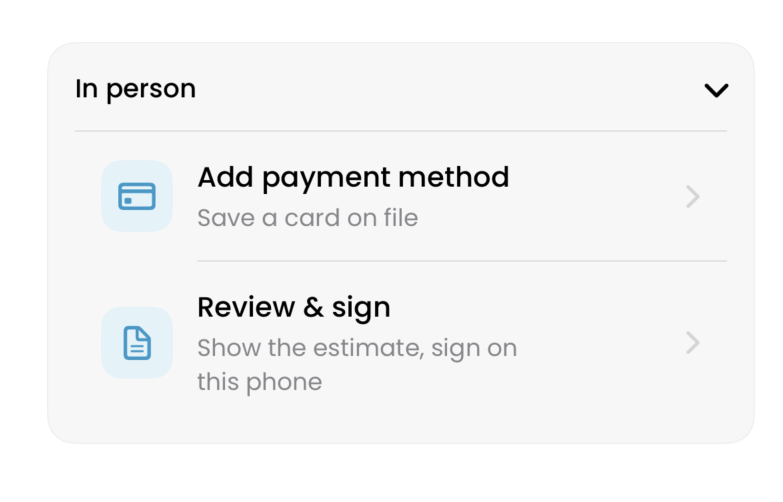
Show the customer the estimate, have them sign on your phone, and save their payment method right at the door.
Automations
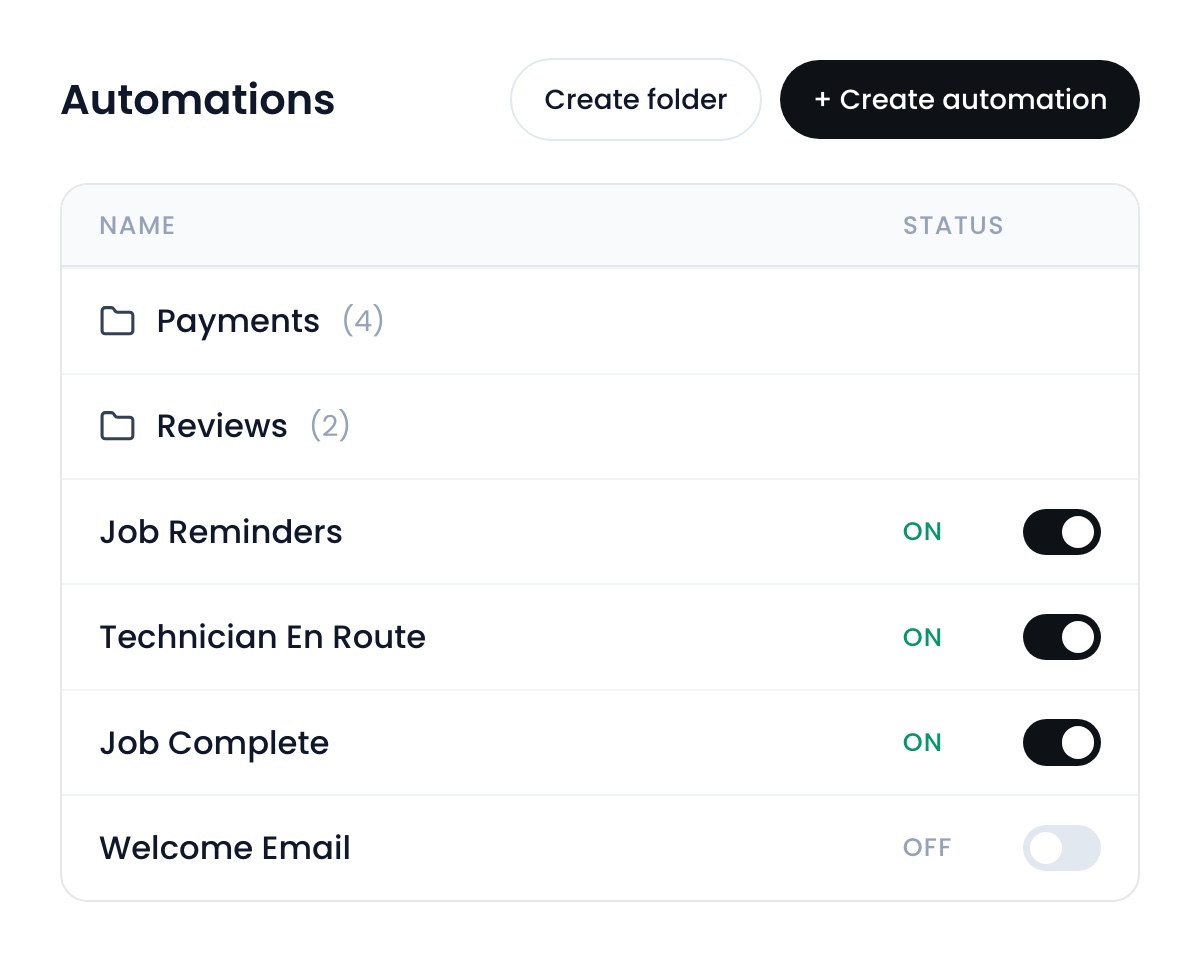
Automations got a full redesign and their own tab in the sidebar. Workflows and message automations now live in one list, organized into folders, and every built-in automation is a real workflow you can open and edit.
Quality checks
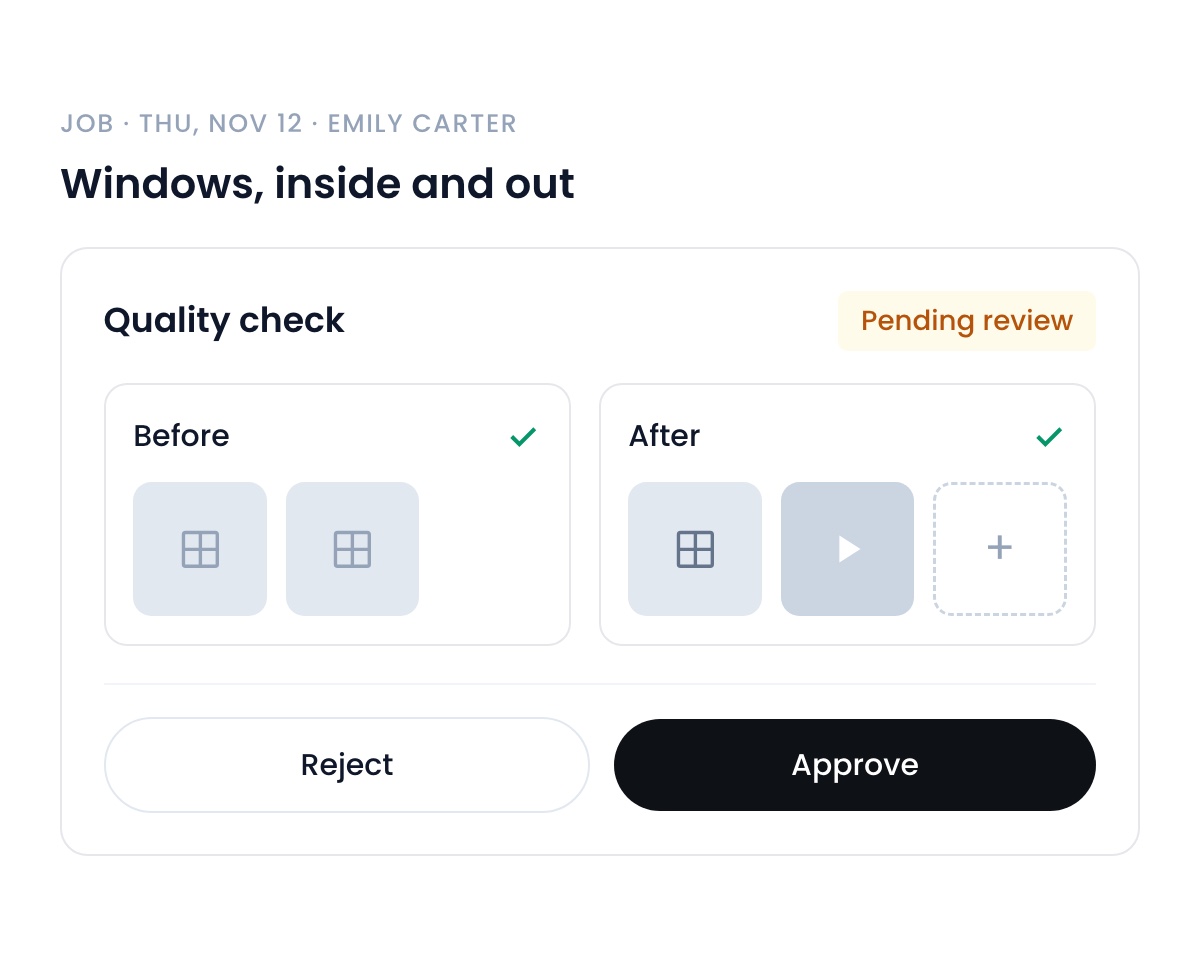
Quality checks are here. Your crew attaches photos or video when they finish a job, and a job can’t be marked complete without uploading them. Once completed, you approve or reject the quality check, and if you turn on the payroll hold, the job stays out of payroll until you approve its photos. Turn them on in Settings → Preferences.
Sales data
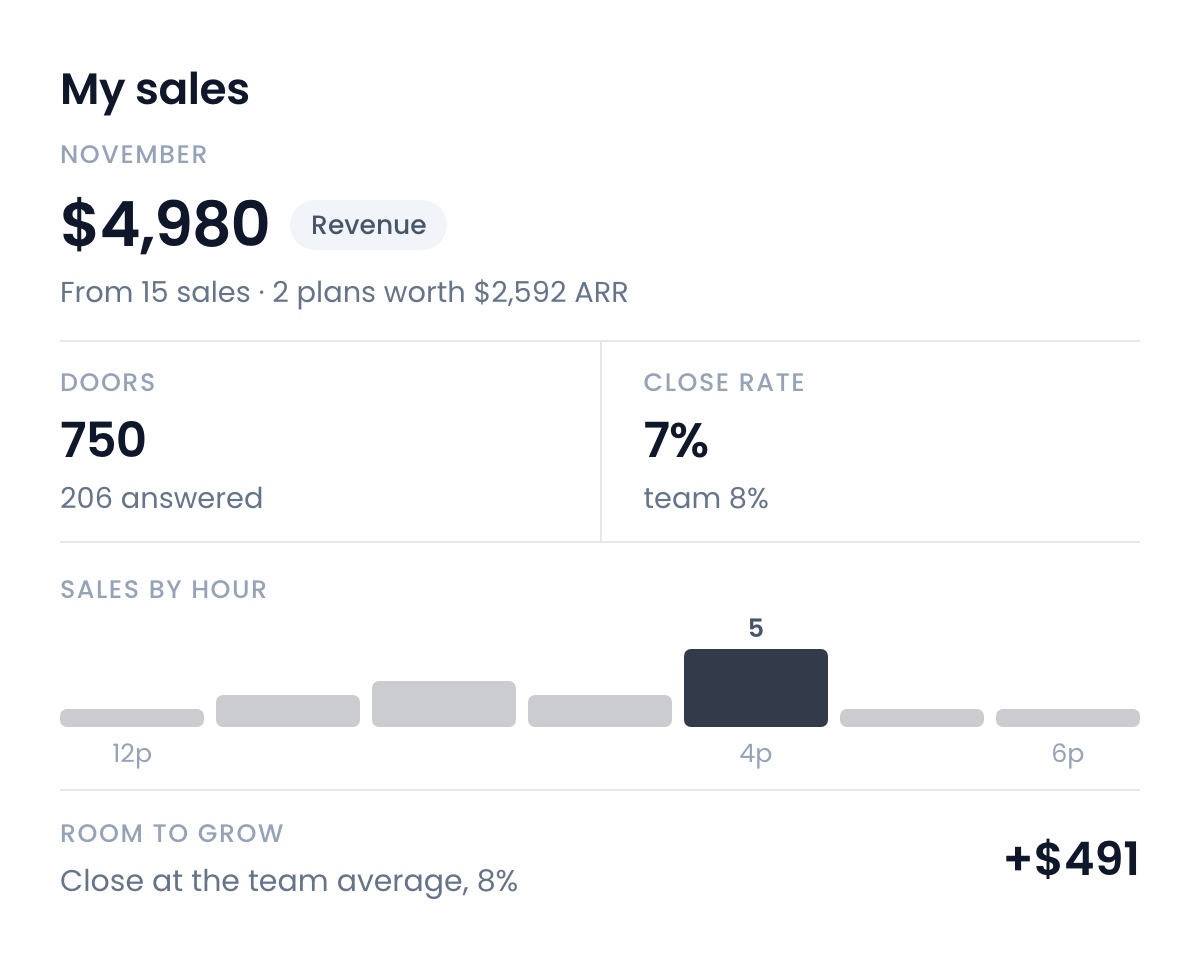
Sales reps can now see all of their data on their dashboard: doors knocked, close rate, revenue per 100 doors, and a sales-by-hour strip showing when they sell best, with a full statement one tap deeper. It even shows them what closing like the team’s best would be worth in dollars.
Also new
- View jobs nearbyCreating a job now shows you what’s already booked within a mile of that customer, with the street and the day, so you can stack your routes as you book.Find it: Jobs → New job
- Photos on payments.Attach a photo to any payment record: a check, a receipt, cash in hand. Easier books, and accountability when an employee collects.Find it: Any job → Payments
- Payment logs.Every job now keeps a timeline of its money: the invoice going out, who recorded each payment, and the moment it settled.Find it: Any job → Payments
- Payouts and balances, on your phone.The Payments screen in the mobile app now shows your Stripe balance and payouts, not just your settings.Find it: Mobile app → Payments
See why teams are switching to Flyra
Thirty minutes where we show you how Flyra will help your business.