Plan your schedule with AI, and onboard every hire
One chat to plan the week, a checklist for every new hire, and custom fields.
November 9, 2026 · 4 new featuresPlan your schedule with AI
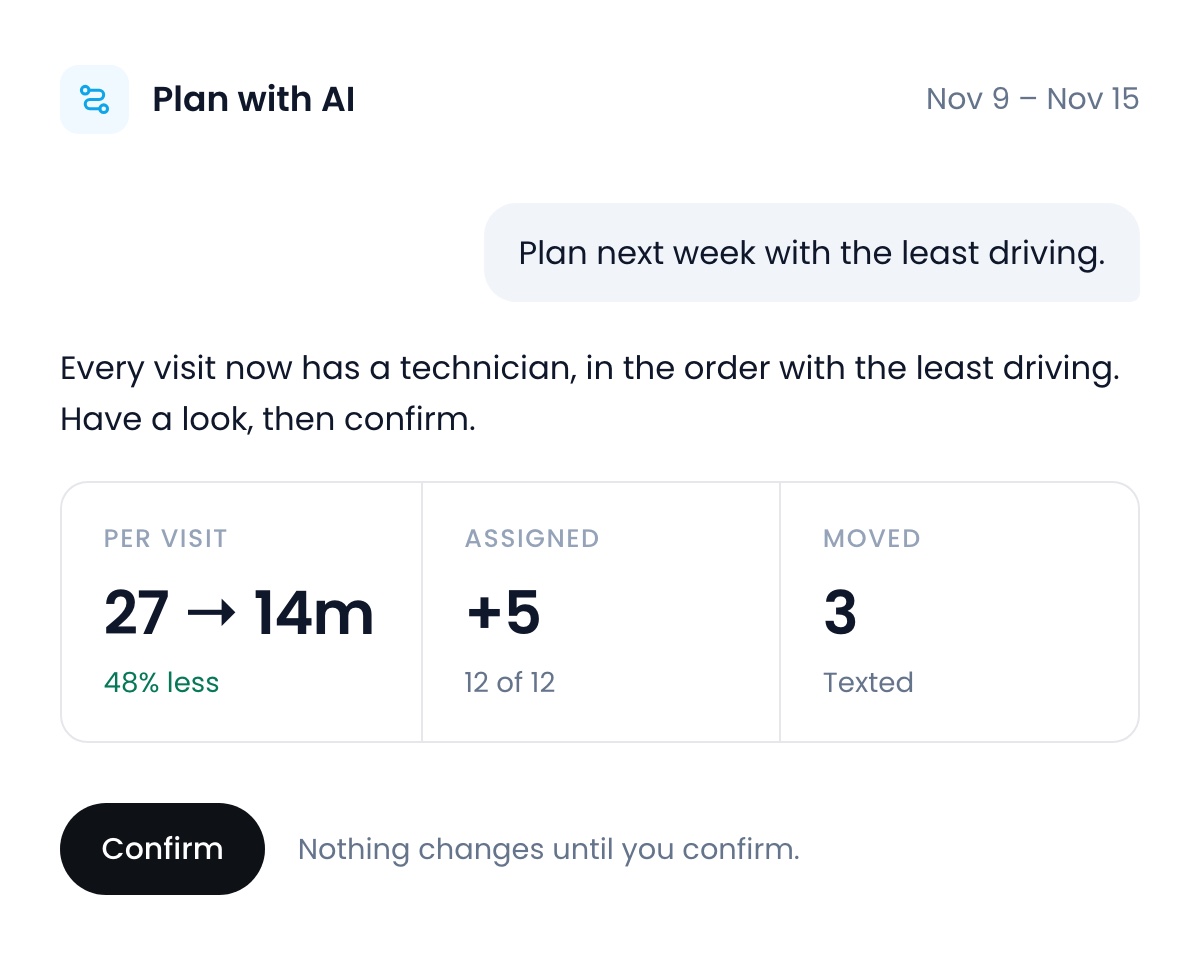
Tell Flyra what you need. It gives every visit a technician, puts each day in the order with the least driving, and texts only the customers who reschedule. The Plan with AI button shows how optimized your days are, and how many visits have nobody on them. Ask for tomorrow, a week or a month, see the routes on a map, and nothing changes until you confirm.
Onboard every hire
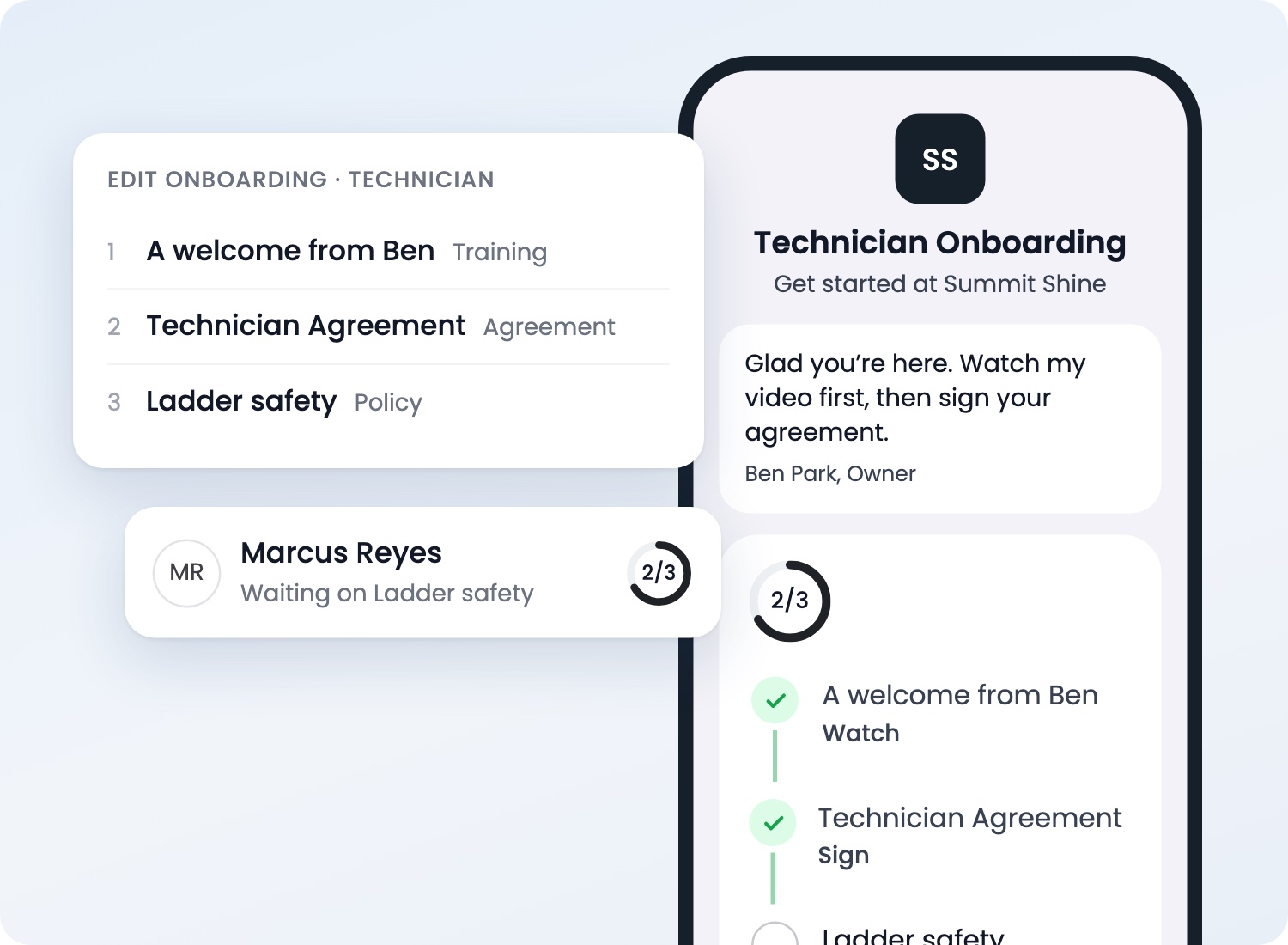
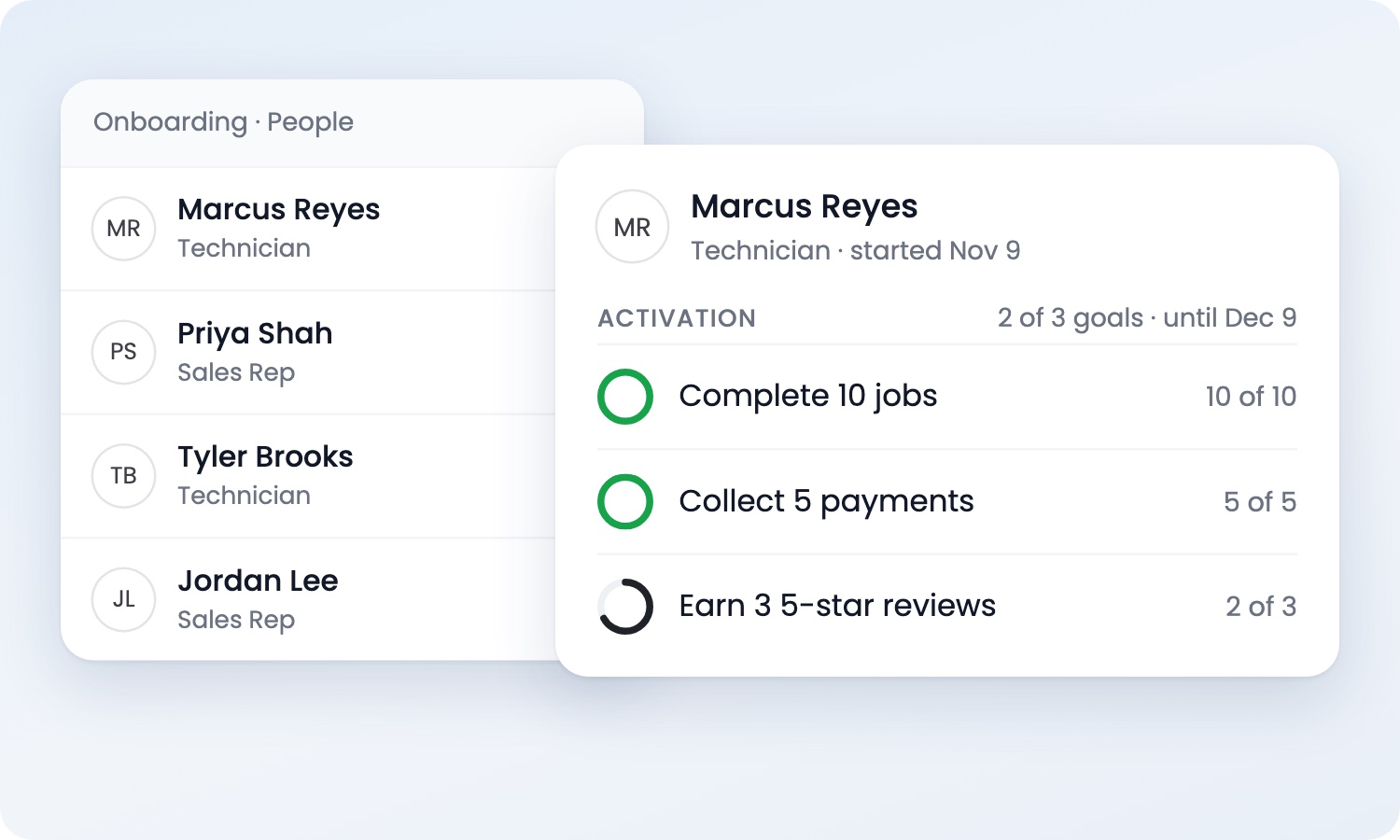
Invite someone like you do today, and they get a checklist on their phone: sign a contract, watch training videos, read guidelines. Upload the contract you already use, add your videos, and the phone next to your steps shows exactly what a new hire will see. Set activation goals for each role and see how far every new hire gets in their first 30 days.
Custom fields on jobs and estimates
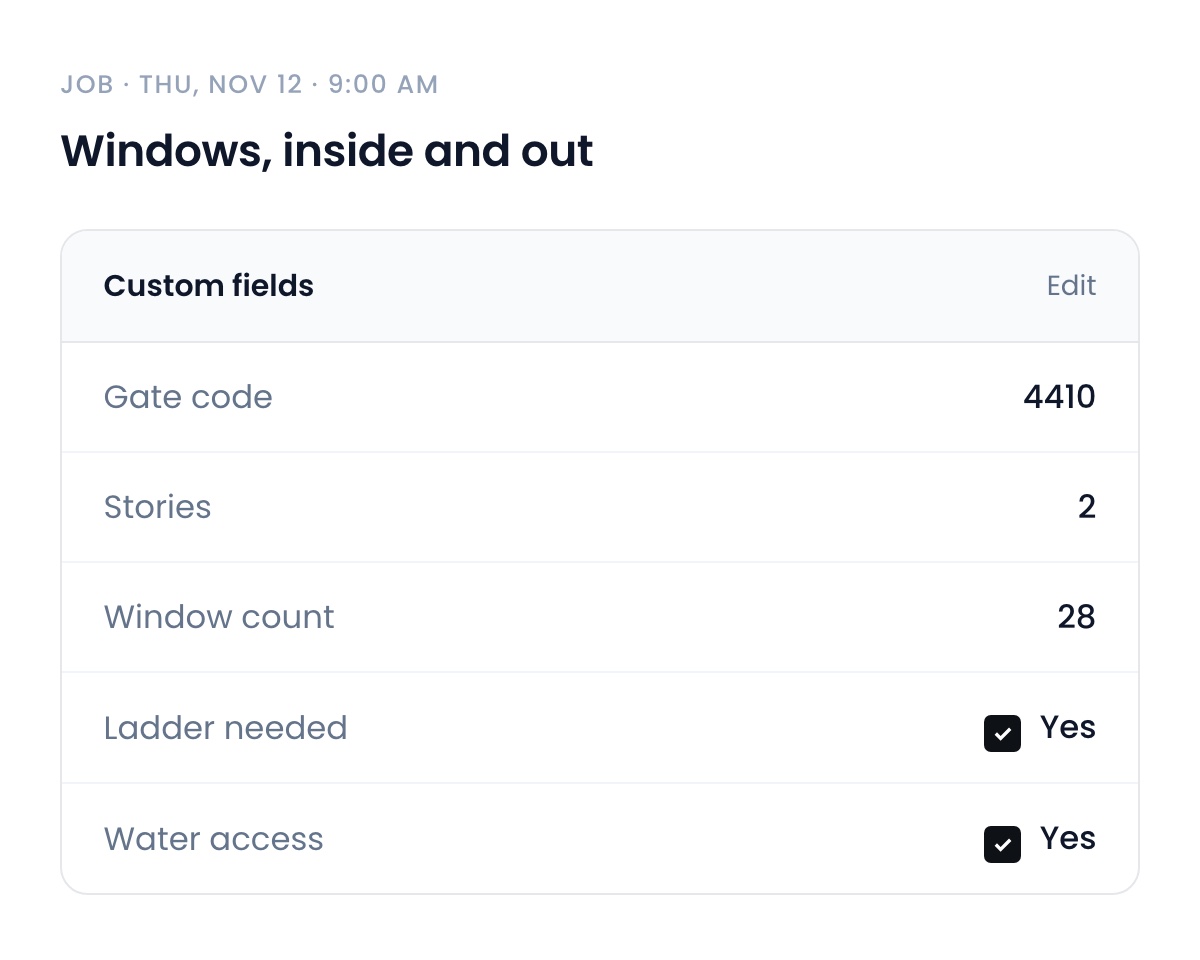
Add your own fields to jobs and estimates, like a gate code or the number of windows, and fill them in from the web or the job sheet on iPhone.
Email from your own domain
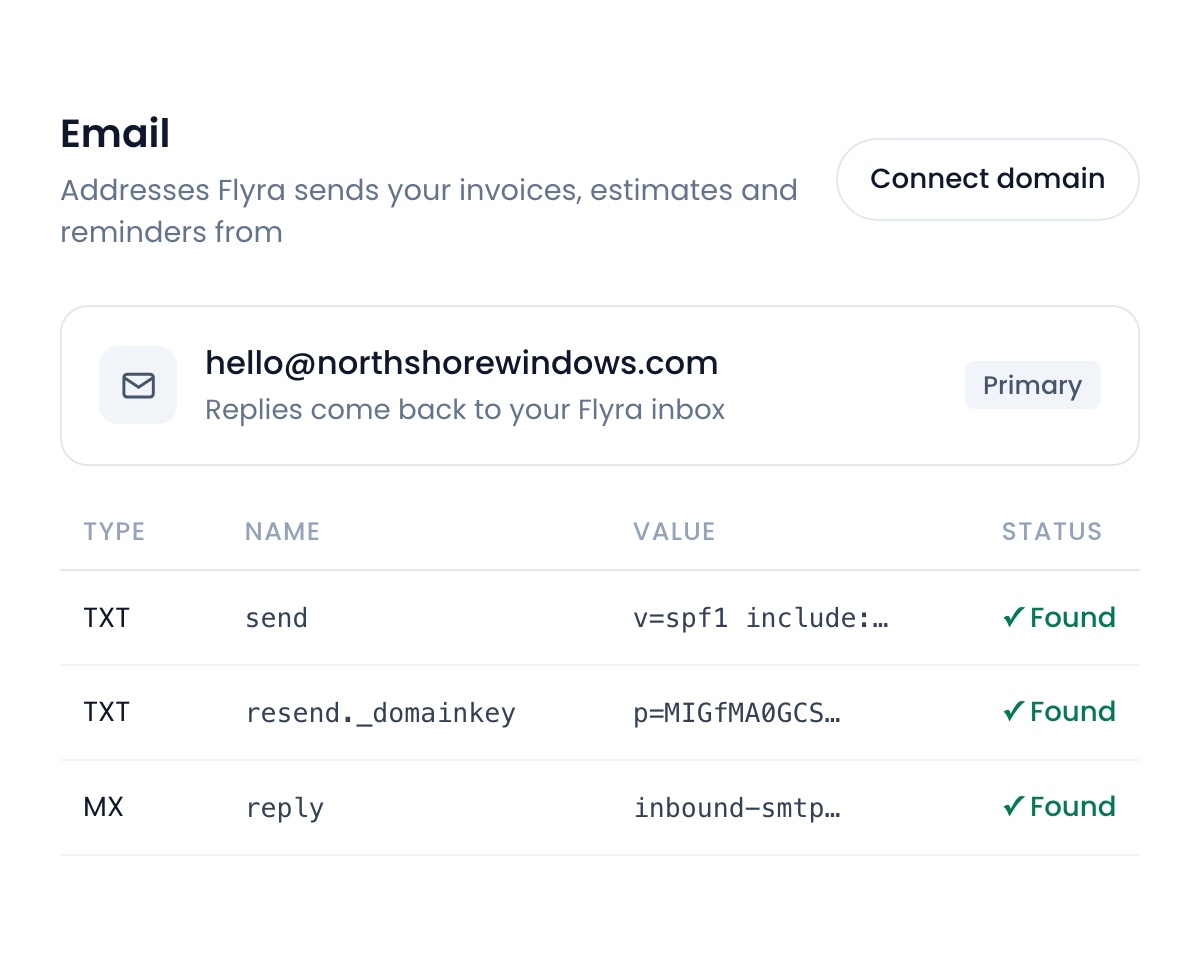
Send and receive customer email from your own domain. Flyra sets up the sending domain and a reply address for you, and your own Gmail or Outlook mail is never touched.
Also new
- A phone menu key can ring a teammate.Point a number in your phone menu at specific people instead of a whole role.Find it: Settings → Organization → Phone → Phone menu
- Better call cards.Recorded calls name the team member, play with a waveform, and show which branch the customer called. Create a lead from the call screen when you don’t know the caller.Find it: Calls
- Turn a first text into a lead.A first text from an unknown number can become a lead, with an optional auto-reply. Off until you turn it on.Find it: Settings → Preferences
- Extra seats.Add seats to a Team or Business plan from the billing page.Find it: Settings → Billing
- Subscription cash, day by day.See collected and expected subscription cash, and open subscription revenue into a day by day view.Find it: Reports → Subscriptions
- A custom repeat for recurring jobs.Repeat a job on any interval you set.Find it: New job → Repeat
New to Automations
- Save and reuse your own emails on the Send email step.
- Edit the sign-off words on your emails.
- New job message variables for the next visit date and time of day.
- Start an automation when a tip comes in, or when a plan goes to the Save Center.
- The team invite email is now an automation you can edit.
New on iPhone
- Custom fields on the job sheet.
- Call and voicemail cards with the team member and a waveform.
- See which branch a customer called.
See why teams are switching to Flyra
Thirty minutes where we show you how Flyra will help your business.