This one’s for your sales team
Quotes with tiers, upgraded mockups, easier scheduling and more.
October 5, 2026 · 6 new featuresGive tiered quotes to your clients
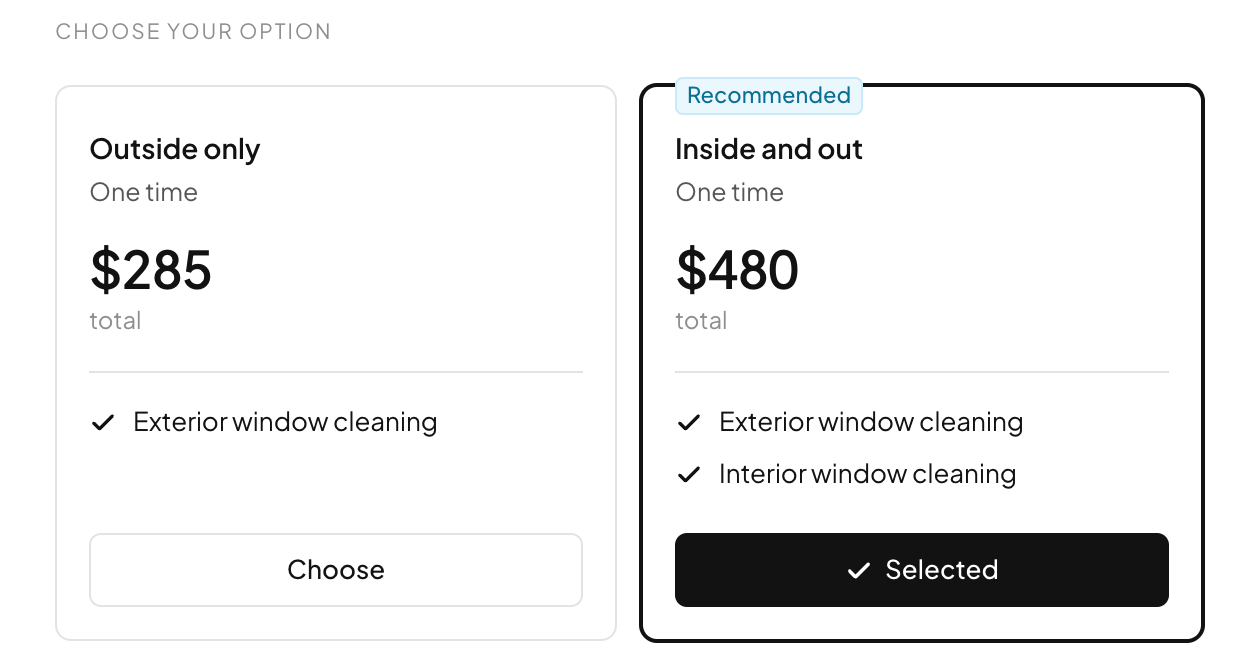
Put two or three tiers of the quote on one estimate, or a one-time job next to a service plan, and your customer picks the one they want. Mark one as recommended and it is already selected when they open it.
Mockup drawing
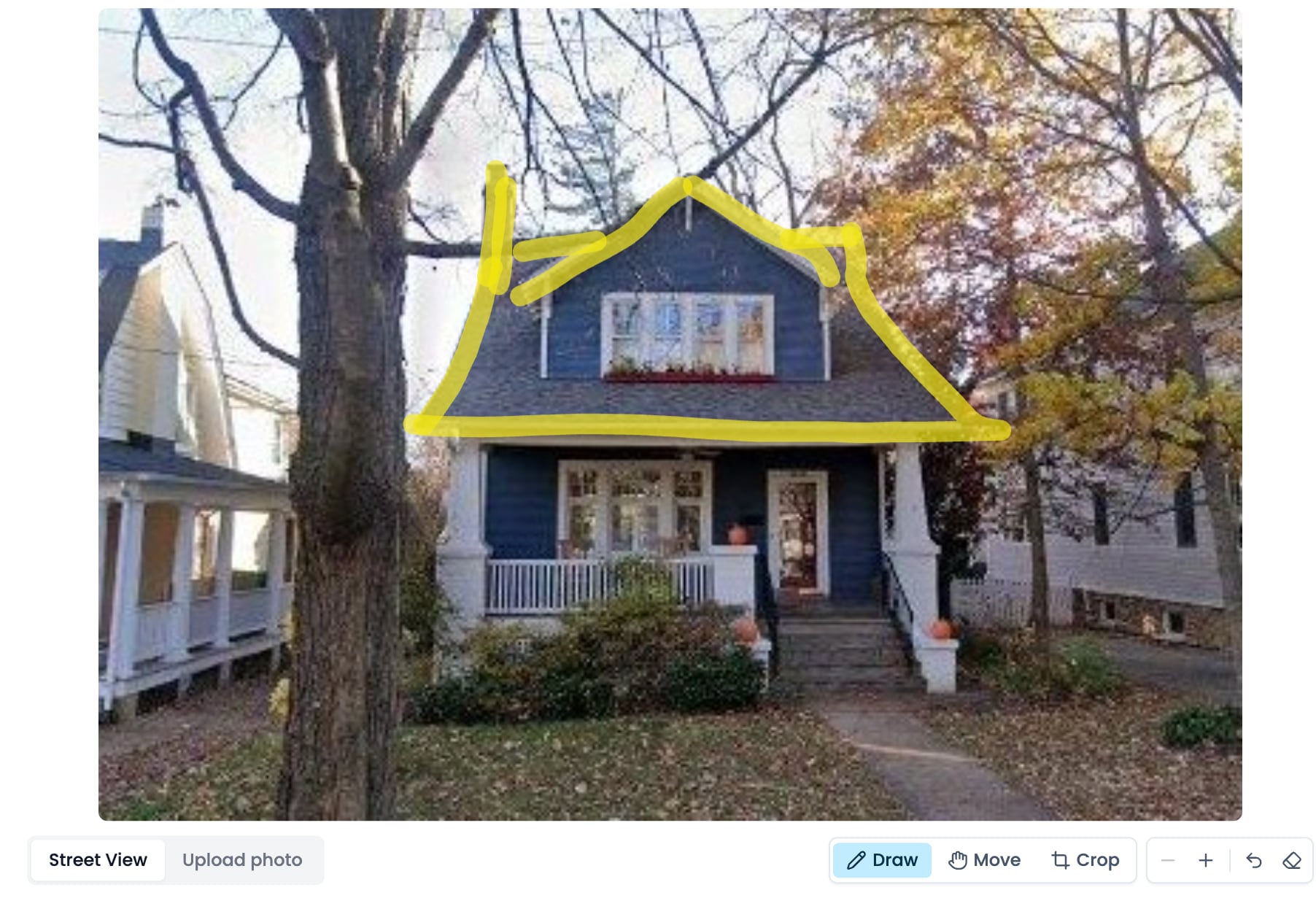
Draw exactly where the lights go on the house, crop and zoom the photo, or step down the street in Street View to get past a tree. Then tap a look and the mockup follows your drawing.
Permanent lights mockups
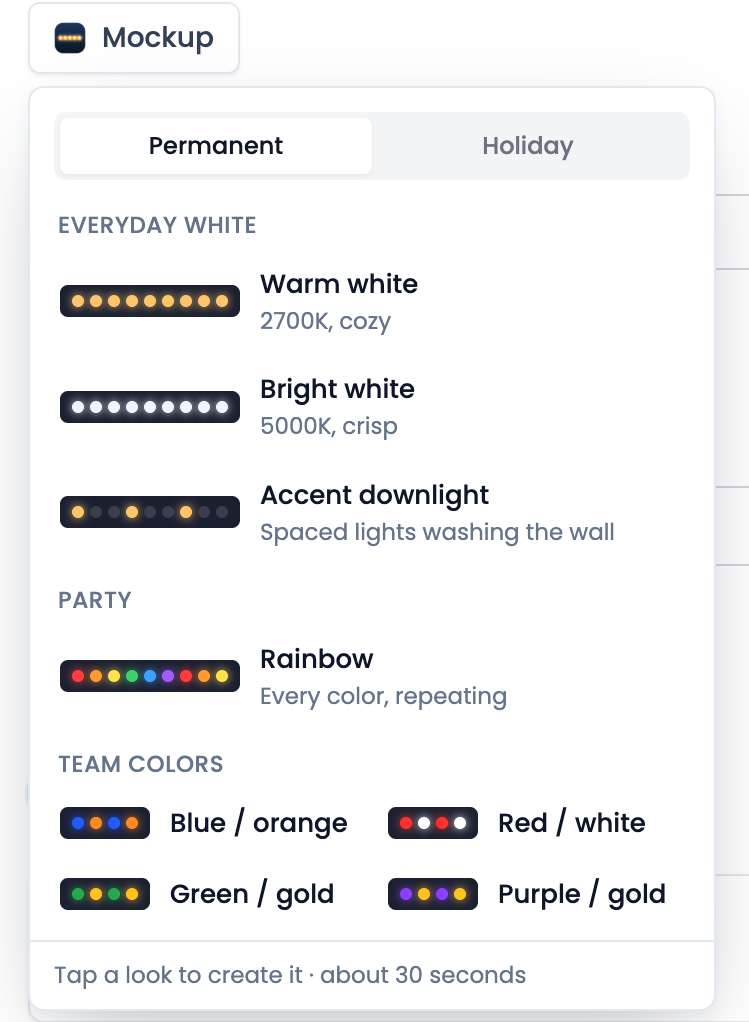
Mockups now do more than just holiday lights. Pick Warm white, Bright white, an accent downlight, Rainbow or your local team’s colours and show the customer their house lit up all year.
Live preview
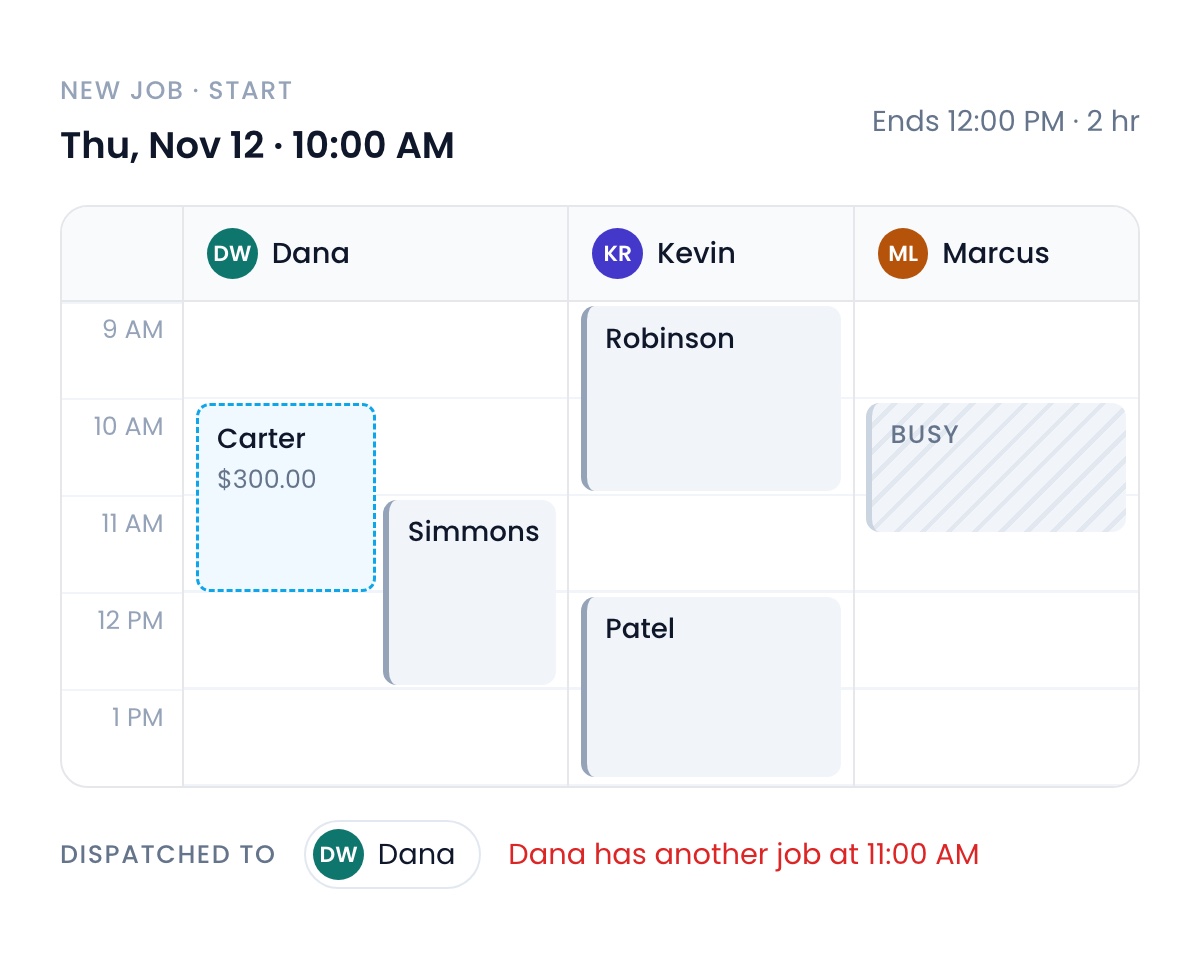
See it before you send it. A new job shows your real schedule, with the job on it as a dashed outline you can drag, and a warning when the tech you picked is already booked. Estimates, invoices and subscriptions show what your customer will see as you build them.
Google Maps
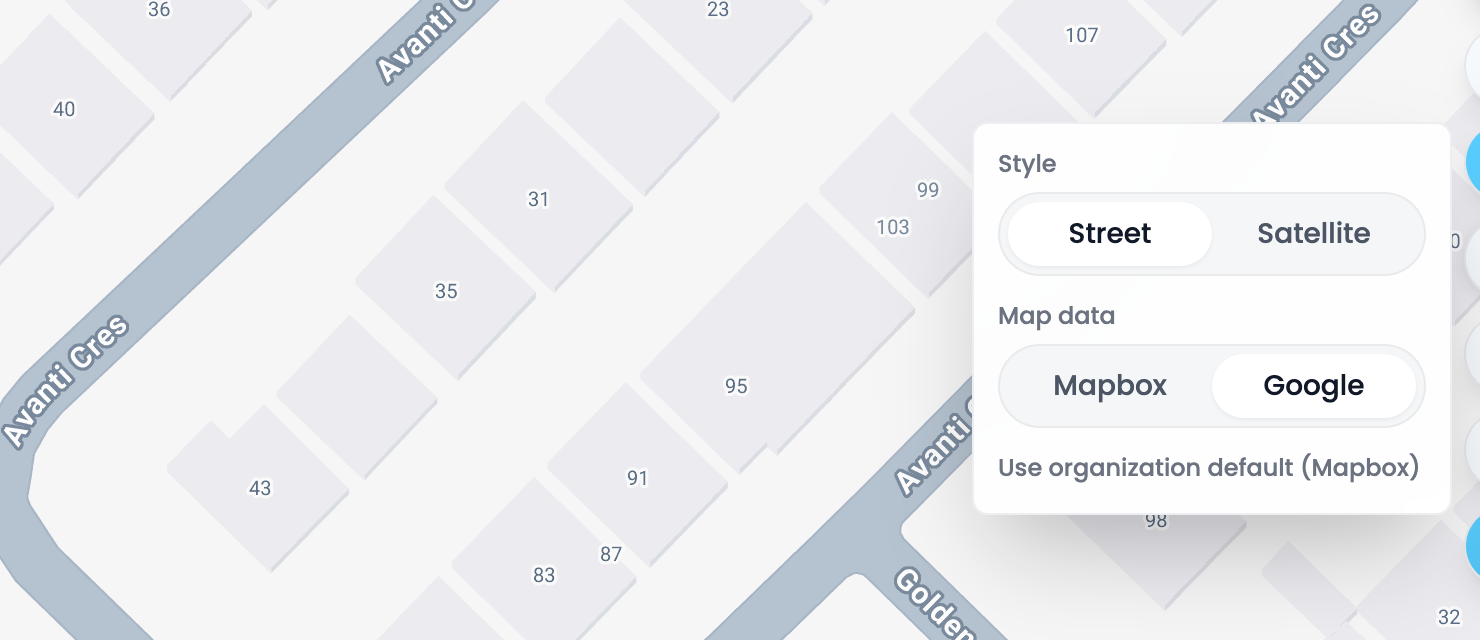
Switch the map to Google and every house number shows, even where Mapbox has none, like much of Canada. An admin can set it as the default for the whole team, and anyone can flip it on their own map.
Quality check shots
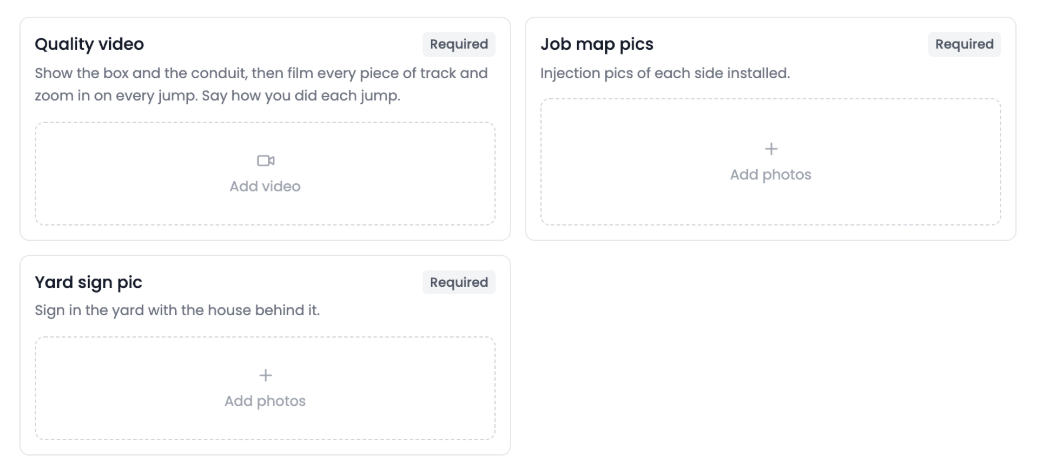
Name each shot a quality check needs, like a video of the full install or a photo of the yard sign, each with its own instructions. Every shot gets its own box on the job, and the check can’t close until the required ones are filled.
Also new
- Filter by technician, tag and plan.Customers filter by technician and active subscription, Messages by customer tag and technician, and the Schedule by Subscription or One-time jobs.Find it: Customers · Messages · Schedule
- One search for everyone.Type a name, a phone number in any format or an email and Flyra finds the lead, the customer and their texts together, best match first.Find it: Messages · Leads · Customers · ⌘K
- See who is calling.Answer a call from a customer or lead and their card opens with the next and last job, address, plan and notes, or the lead’s stage and source.Find it: Calls, on web and iPhone
- Lead details on the customer.A customer who came in as a lead now has a Lead details tab with the form answers, the ad they came from, the notes and the score.Find it: Customer page → Lead details
- Discount lines.Type a minus price on any estimate, invoice or job line and the discount becomes its own line, like “Off season discount, -$500”.Find it: Line items
New to Automations
- Notify team can pick people by name, and text them.
- Variables open by category.
- Tick several automations, or a whole folder, to move them or share them as one link.
- Create lead fields can use Customer, Employee, Company and General values.
- Turn each document PDF on or off per message step.
- Re-sending an estimate replaces its follow-up instead of starting a second one.
New to MCP
- An agent can copy one lead form’s look onto another.
- Route a Meta instant form into a pipeline.
- Set a subscription’s contract length and per-visit pricing.
- Text an estimate to its customer with an API key, so your website can quote on its own.
- Pick up new permissions without reconnecting.
See why teams are switching to Flyra
Thirty minutes where we show you how Flyra will help your business.